First Point Header
Testing the style of ProDesign.
Testing the style of ProDesign.
RoutCad® CAD Software for Electrical, Mechanical, Floor-Plan and Technical Drawings
|
Description
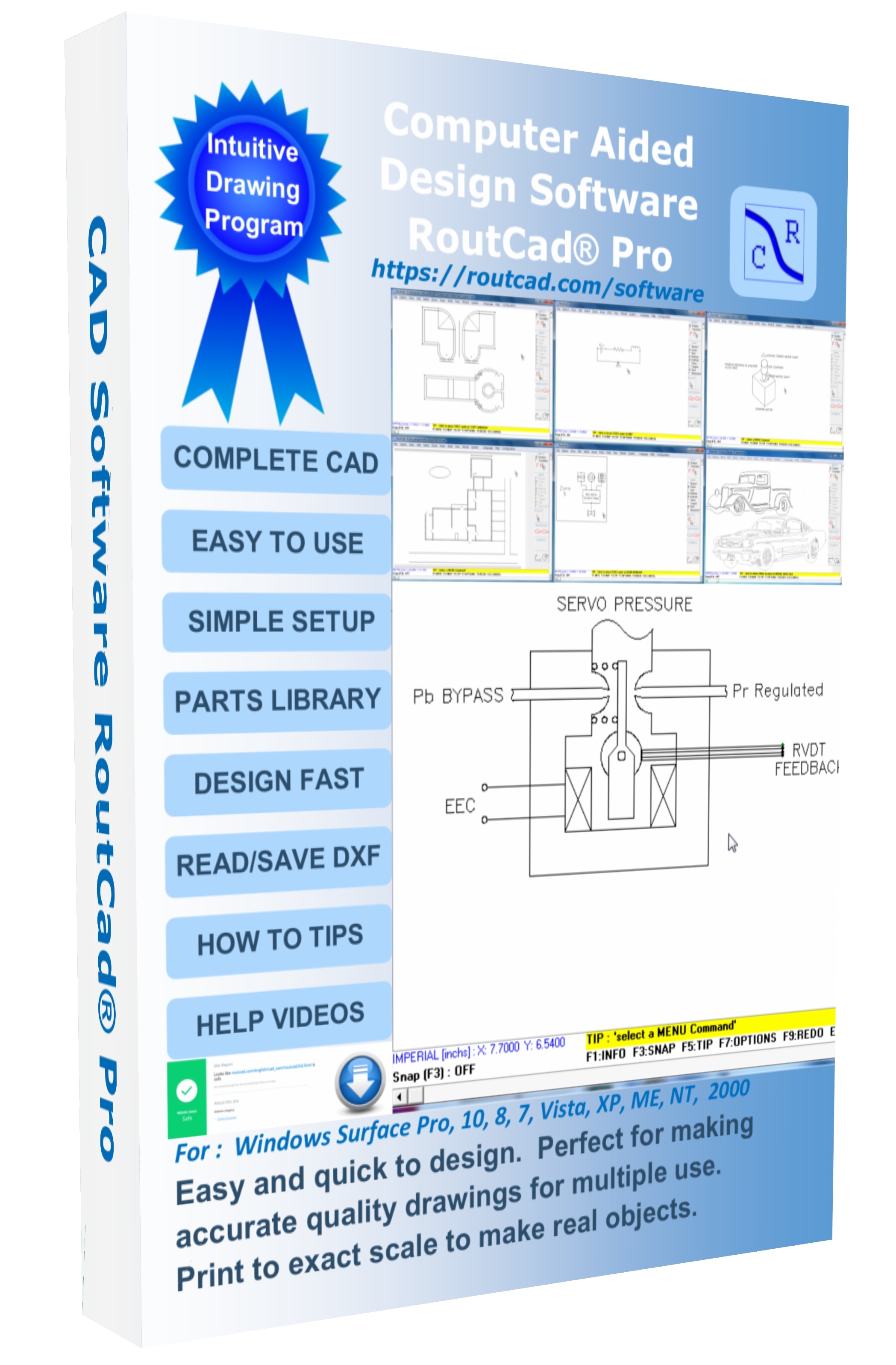
RoutCad Full Release is an easy to use Computer Aided Design software. You can use it to create : electrical, mechanical, floor-plan and technical drawings.
There is an abundance of options and commands that enables you to create, modify, and combine objects to quickly achieve the desired results.
The software comes with a library of pre-designed shapes and a comprehensive easy to follow
user manual in pdf format. A series of training (Quick Start) videos have been included to help
quickly and effectively learning the software. You can use RoutCad to create accurate drawings that you can include in your report or print to exact scale on
almost any printers. The printed sheets can be used as a technical drawing or as a template for accurately making an object. You can vary the line tickness and select the color
of the background and of the drawing objects. A TIP is always showing what to do next. You can import and export .dxf and merge the RoutCad .cad files to your current drawing.
2-How to use the RoutCad® CAD Software
Step 1 : "Install RoutCad in Windows" Using the digital download or installation CD, install RoutCad® in Windows 95, 98, 2000, NT, Millenium, XP, WIN 7, or WIN 8. Then you active the software using the instructions provided. Step 2 : "Draw your Mechanical, Electrical, Sketch, or Floor-Plan" With RoutCad® it is easy to draw objects. View the training videos or consult the manual to quickly help you perform the desired task. Step 3 : "Print or Include in your Report" Once you complete your drawing, you can print your drawing to exact scale using almost any printer or print to fit the worksheet area. You can also include in your report directly from your PC. 3-Minimum System Requirements Win 10, 8.1, 8, 7, NT/Millenium/XP/2000. 512 Mb of RAM or higher, 512 Mb of Hard Disk space or higher. This listing is for a single license of the RoutCad® CAD Software to be used in one PC. What is included in this listing is the RoutCad® digital download which has RoutCad® software (self extract) and the RoutCad® user manual that explains how to use the RoutCad® software. |
Features
|
Main Table of Contents
4.1-Design environment introduction. Learn how to navigate the menus and use the drawing panel and acces the short cut keys.[MAIN TABLE OF CONTENT]
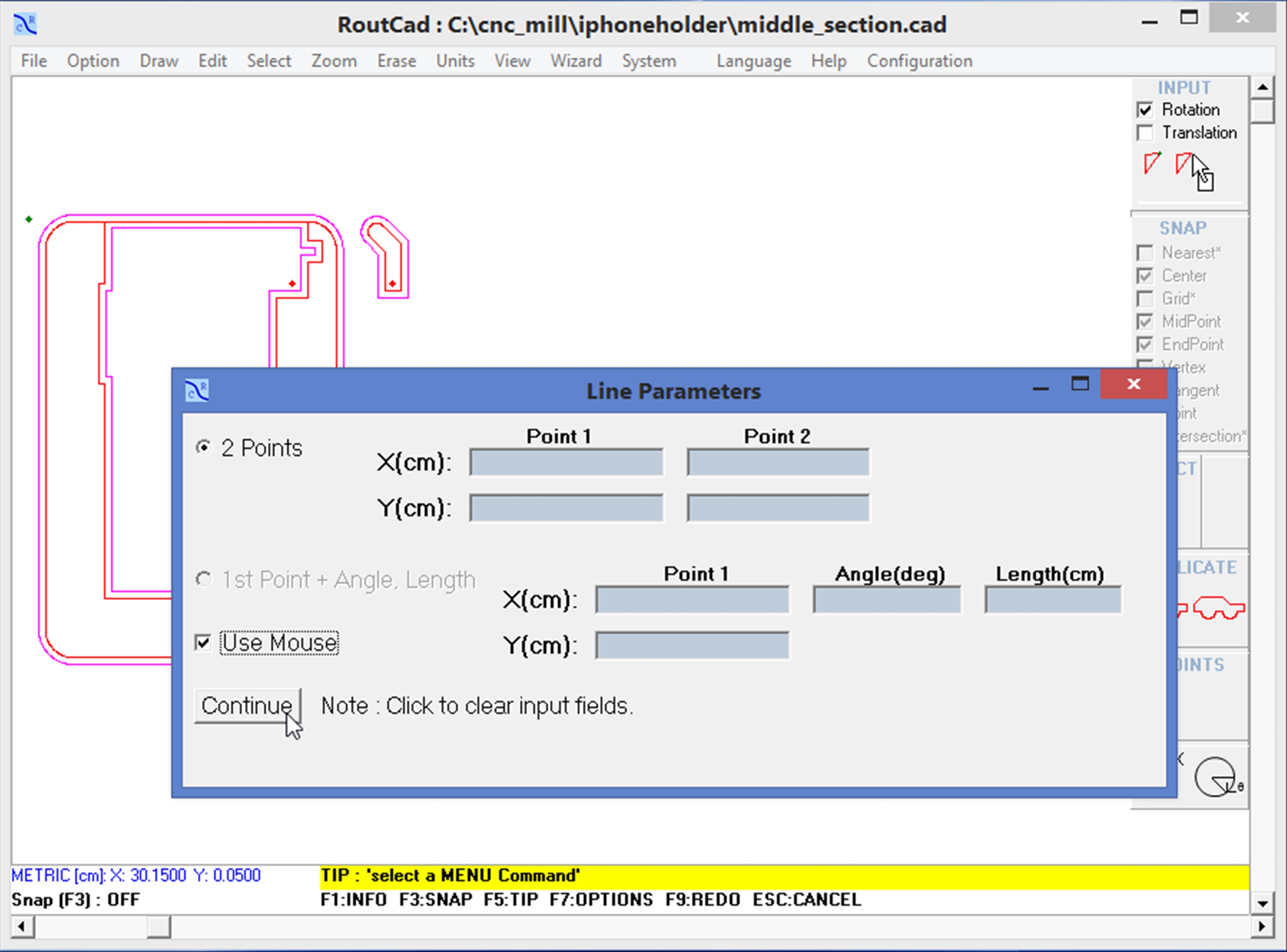
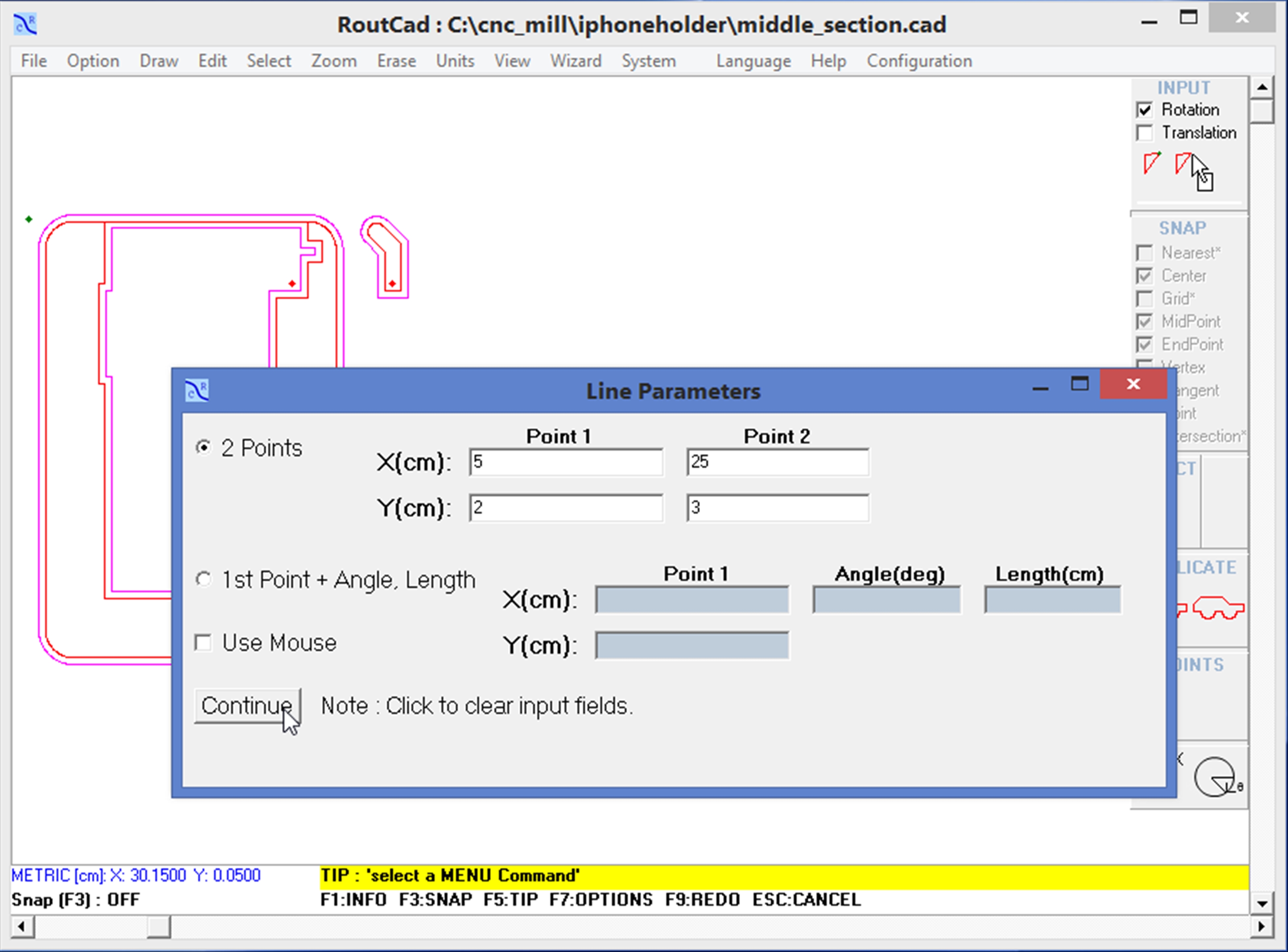
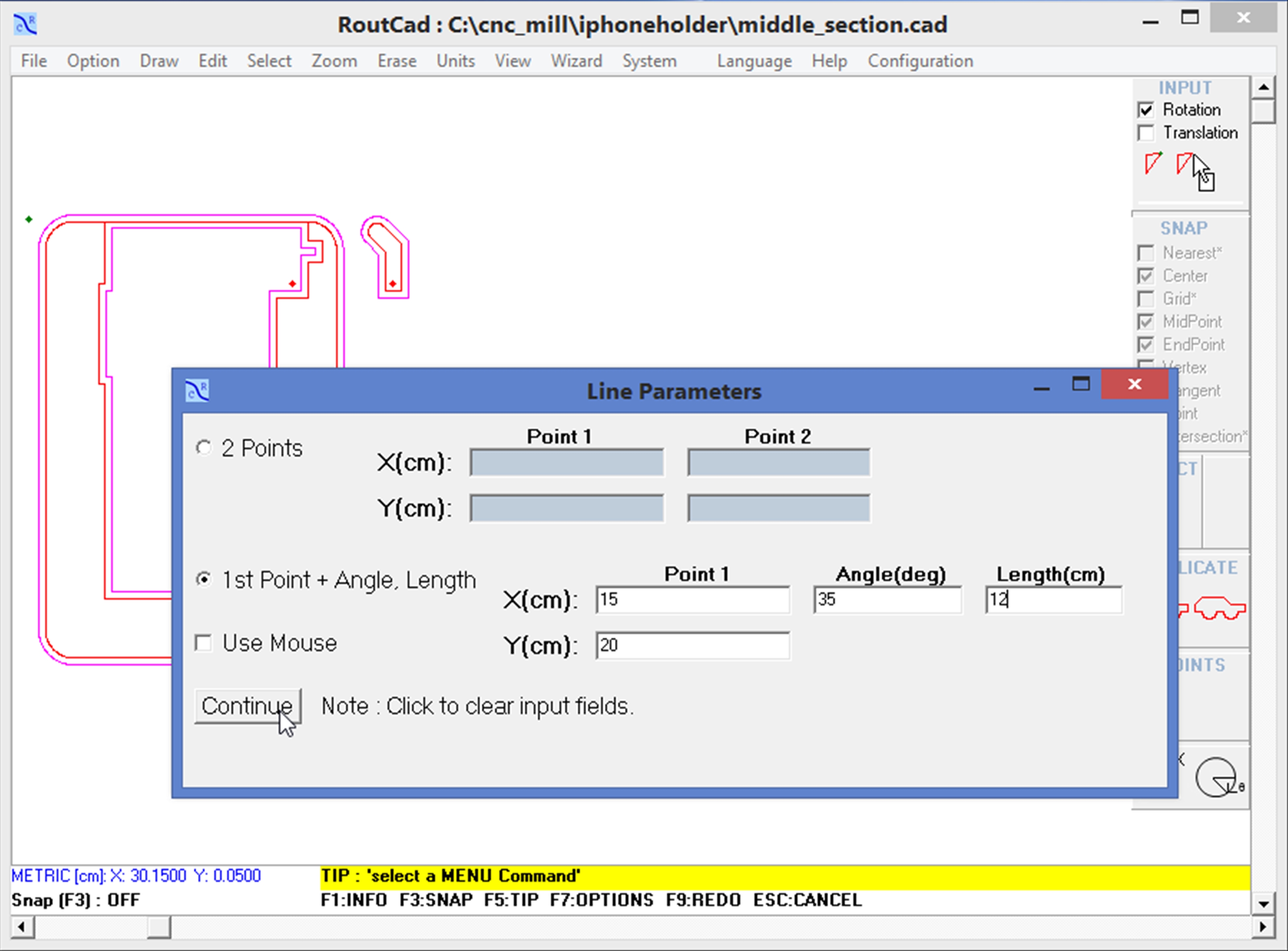
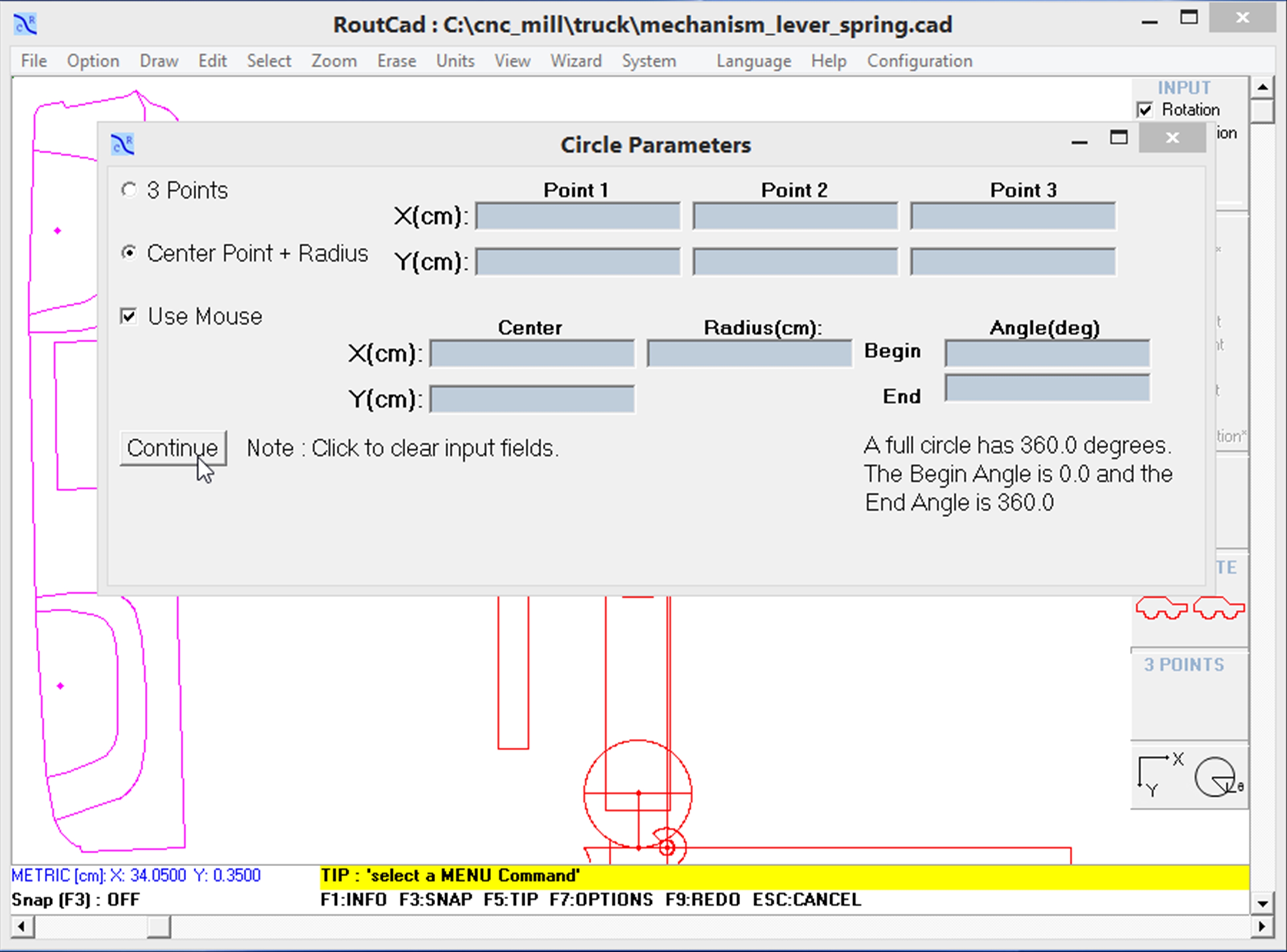
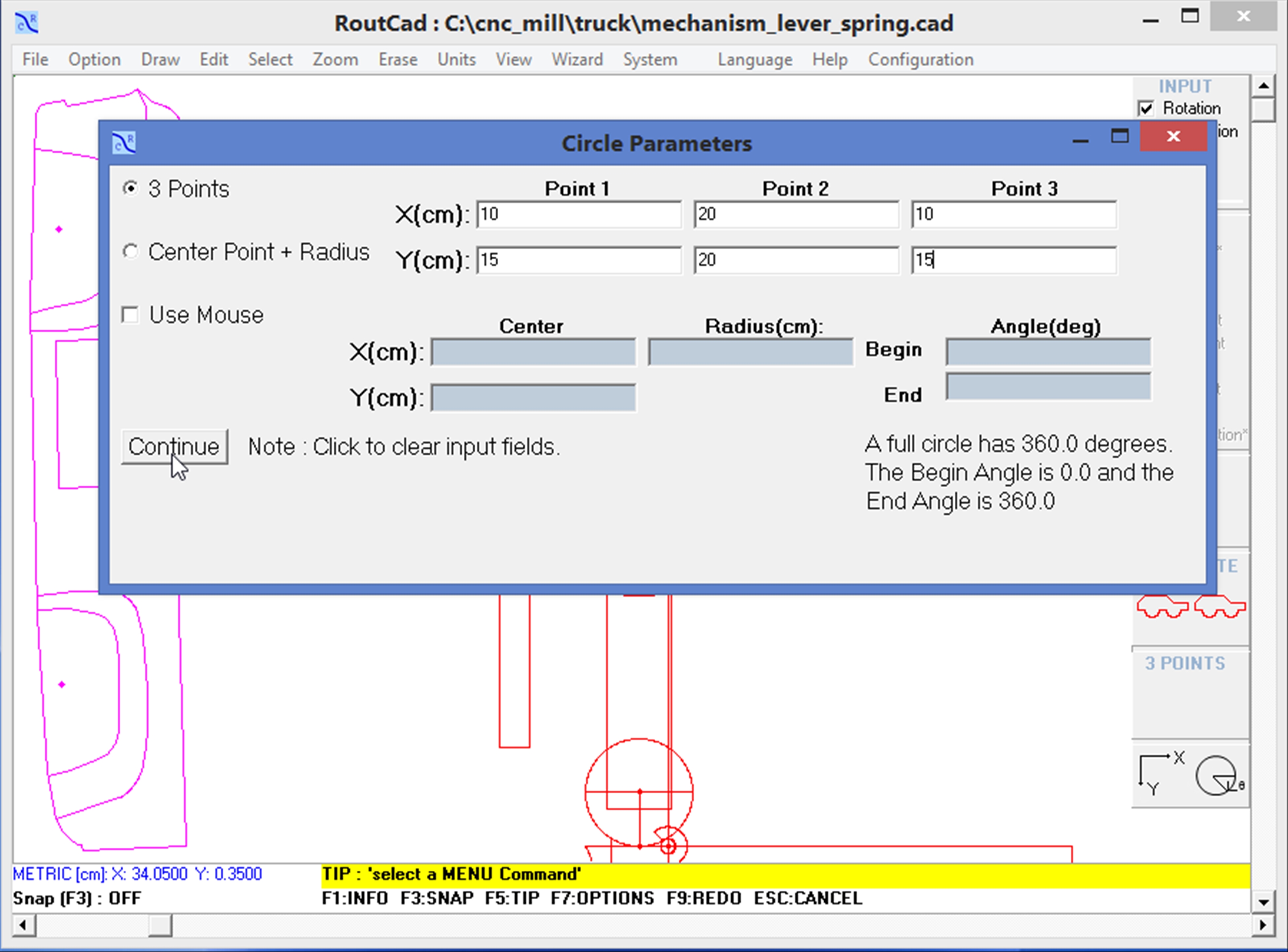
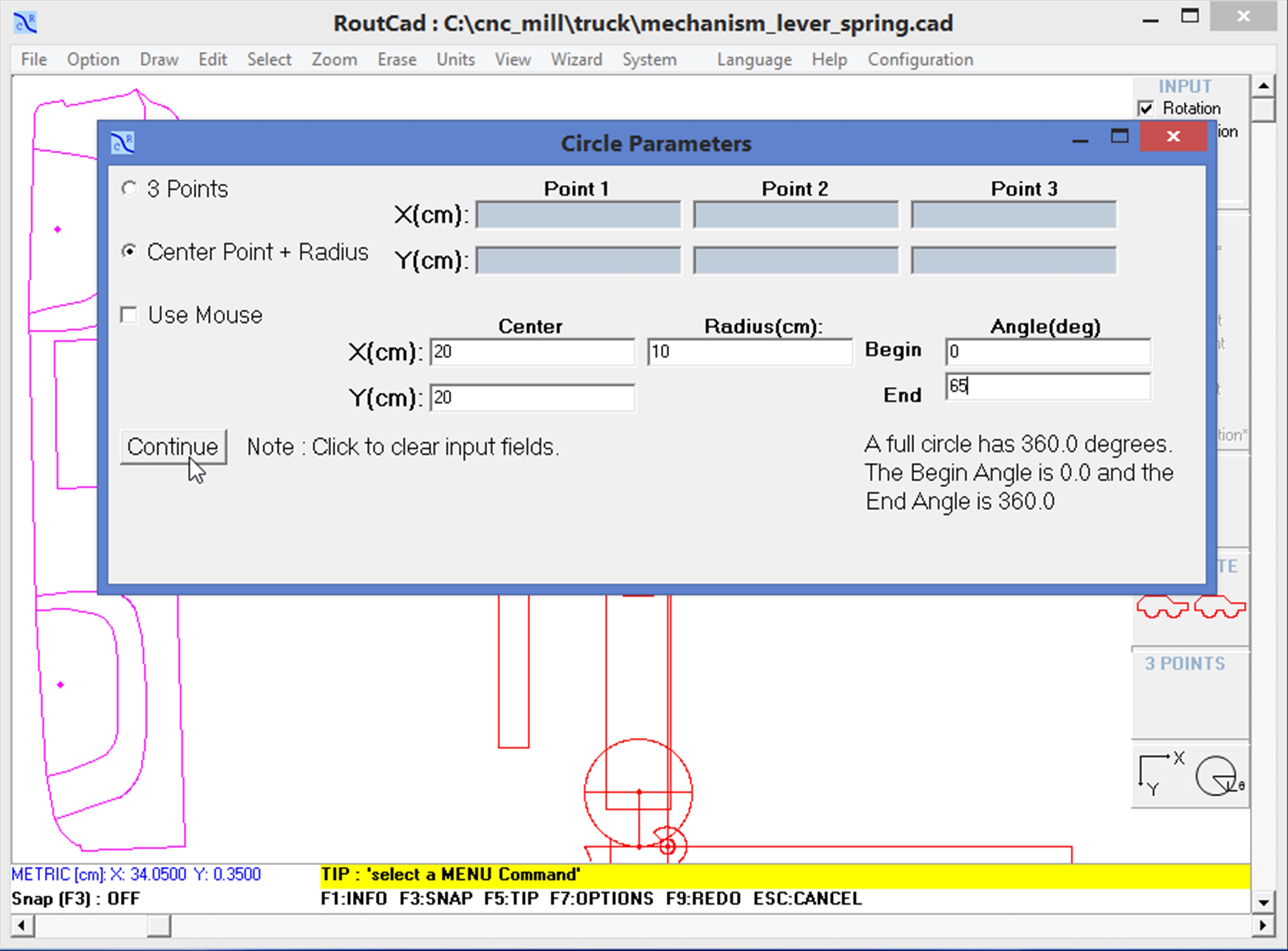
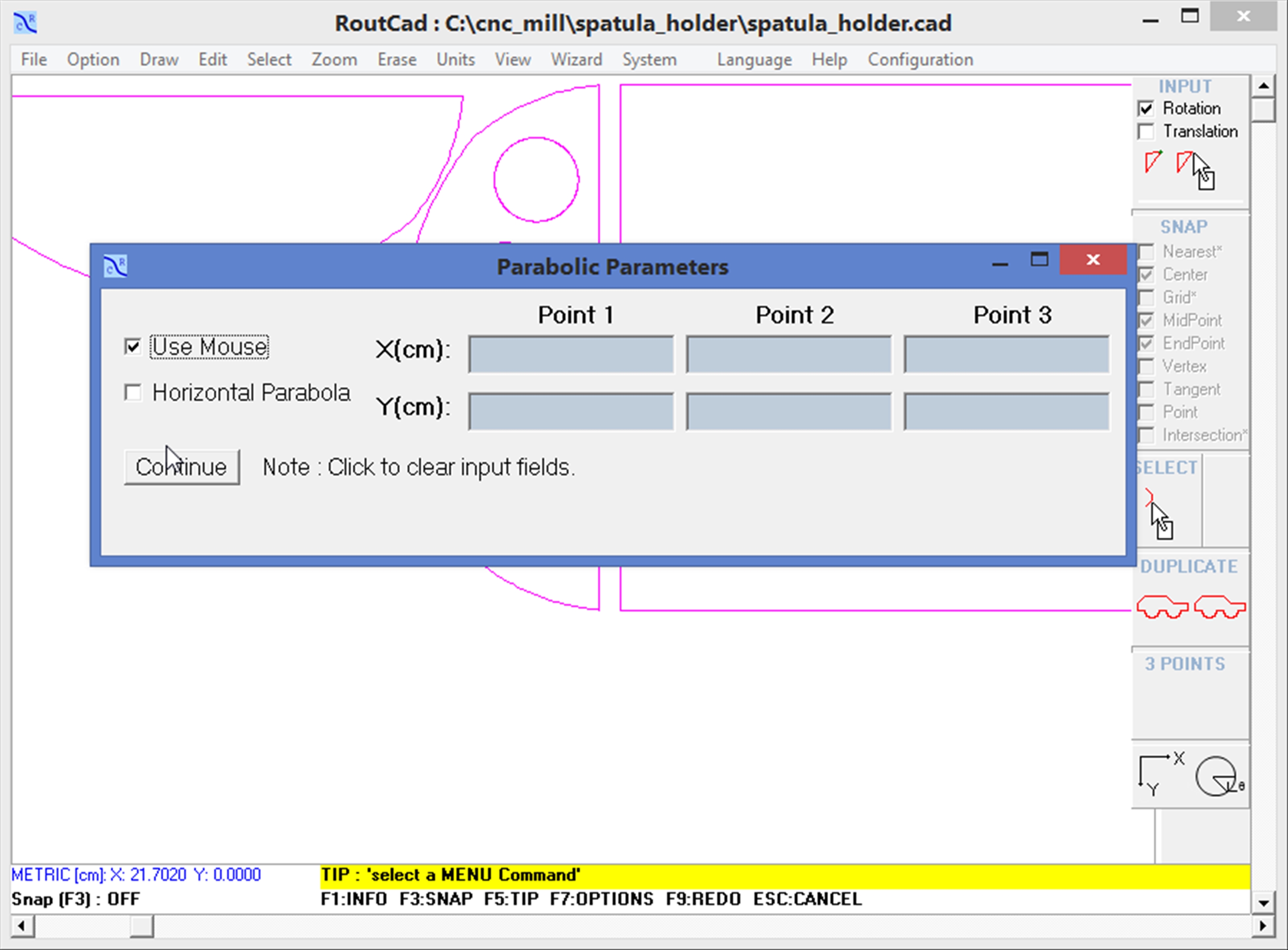
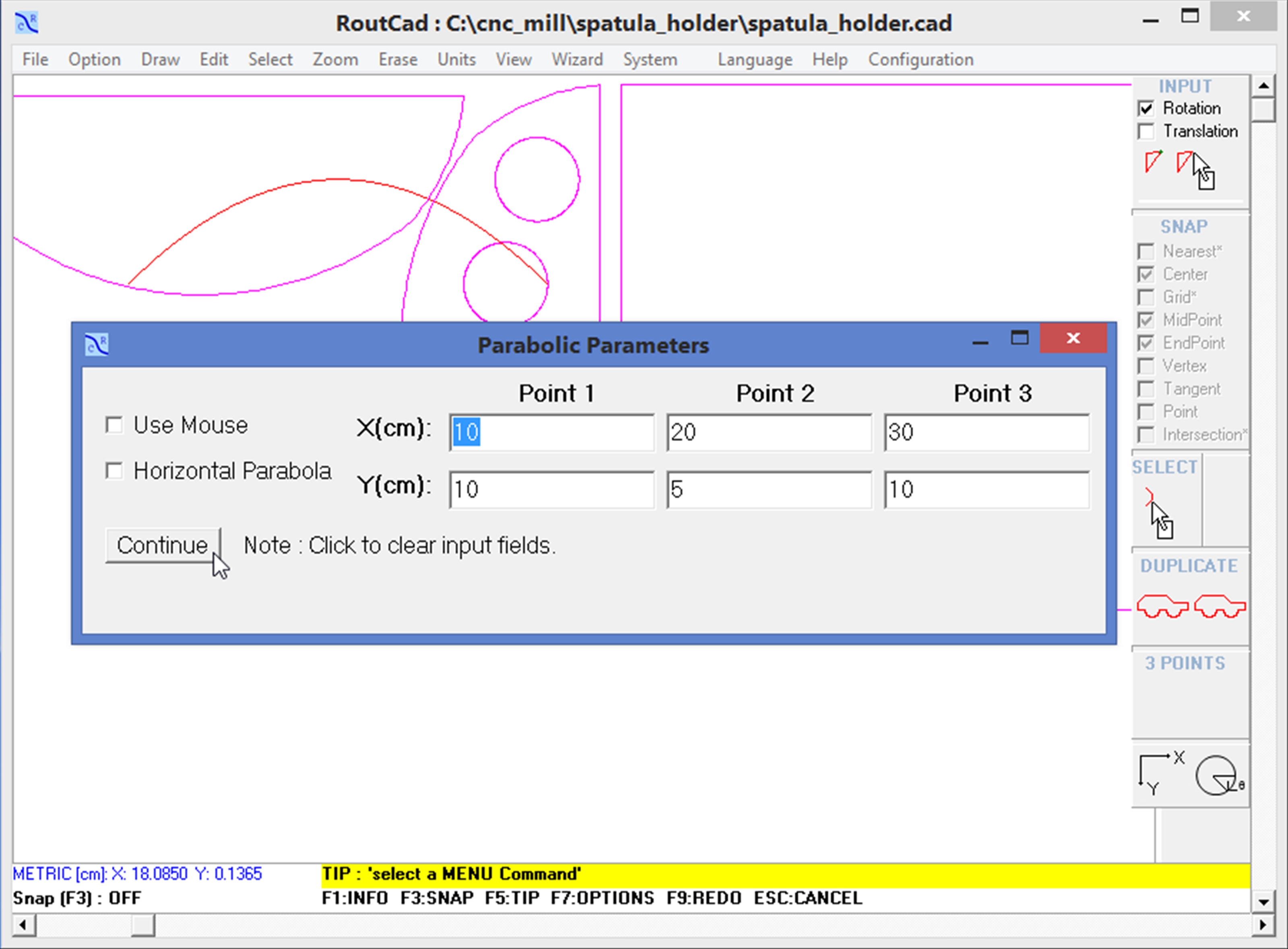
4.2-Drawing basic elements. Learn how to draw : line, point, arc, circle, parabola to create parts. Easily merge parts from the standard library or create your own parts library to create complex drawings.[MAIN TABLE OF CONTENT]
4.3-Making a simple wiring diagram. Learn how to make a simple wiring diagram using the provides standard parts library.[MAIN TABLE OF CONTENT]
4.4-Using the Wizard Symbol. Learn how to merge existing symbols into your drawing.[MAIN TABLE OF CONTENT]
4.5-Using the Wizard Shape. Learn how to automatically create shapes.[MAIN TABLE OF CONTENT]
4.6-Using the Wizard Area. Learn how to calulate a closed polygon area and center of gravity.[MAIN TABLE OF CONTENT]
|
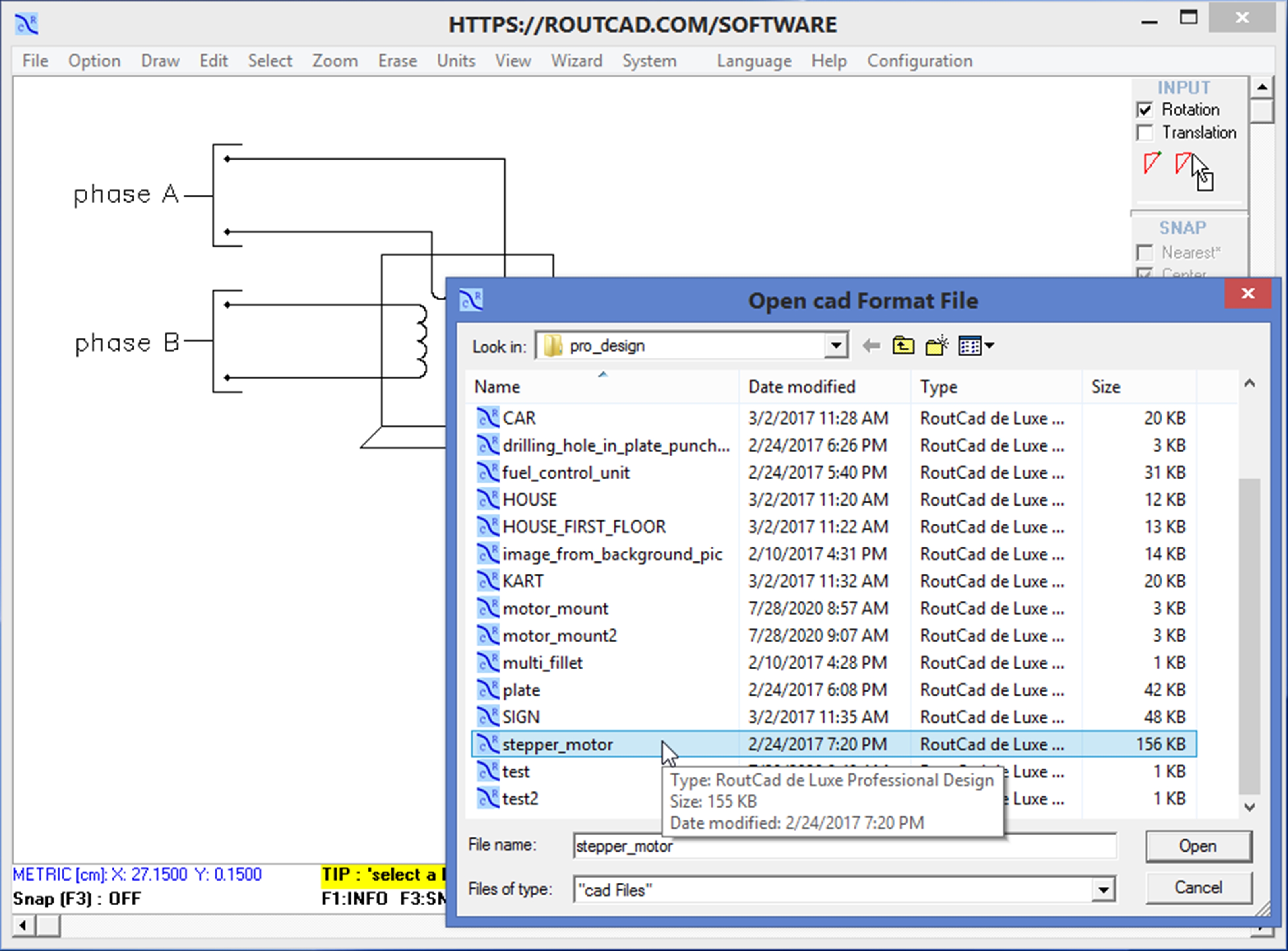
5.1 - Preview the file content before opening the file. When looking for a specific file, it could sometimes take a long time to locate a file, specially when you have many files in different the folders. The file content preview features allows you to see the content of a file before opening it. Just go to the menu item [File]->[Open] and you will be able to browse to any files and folder. Just click once on any file and the content of the file will appear in the drawing area. Move with the arrow key or mouse to a different file and its content will show up. Then click on open or double click the file to open it. If you do not wish to open a file just click on [CANCEL] to return to your currently project. This greatly speeds up the process of looking for your files..[MAIN TABLE OF CONTENT] 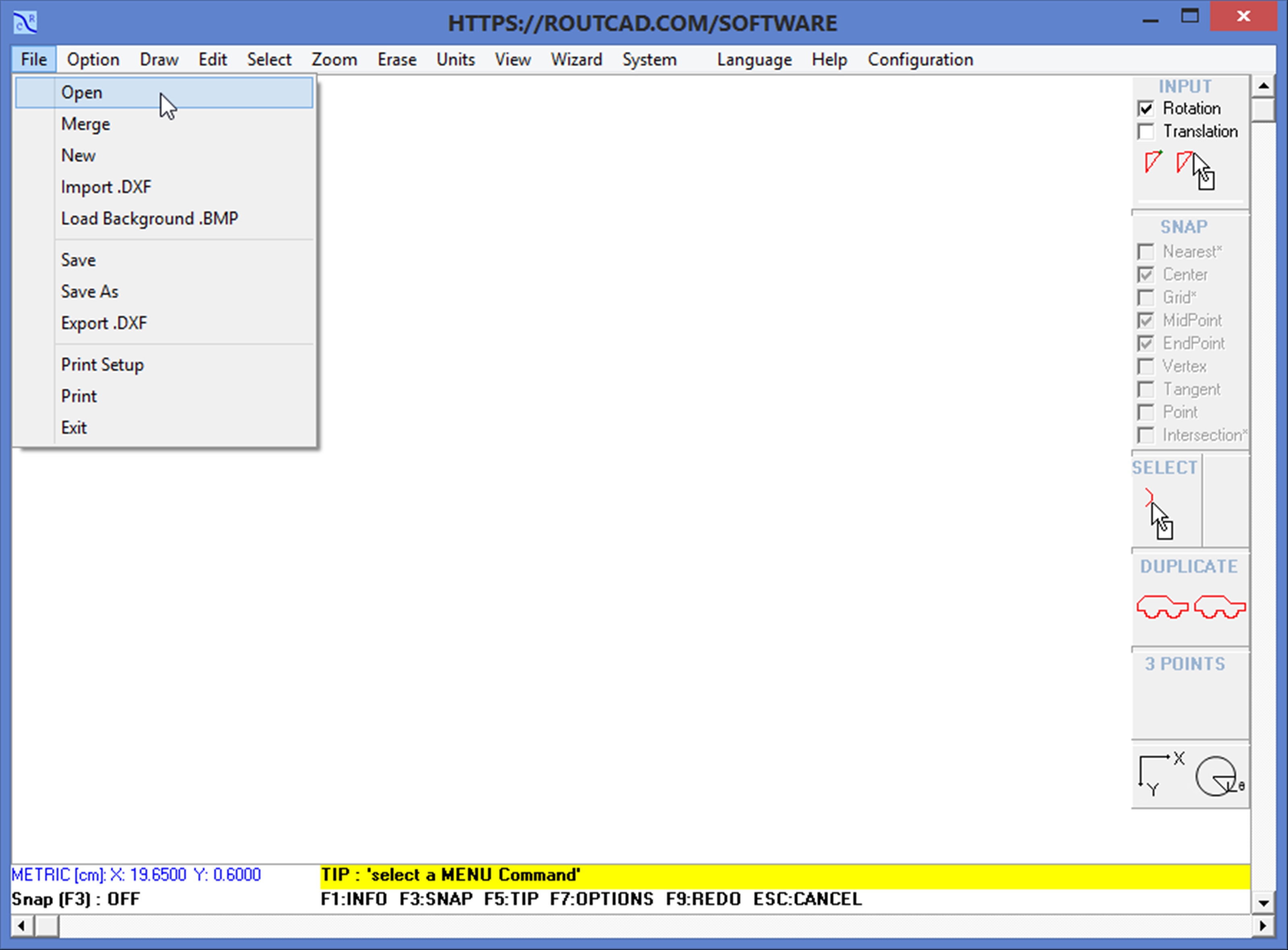
|
|||
|
|||
|
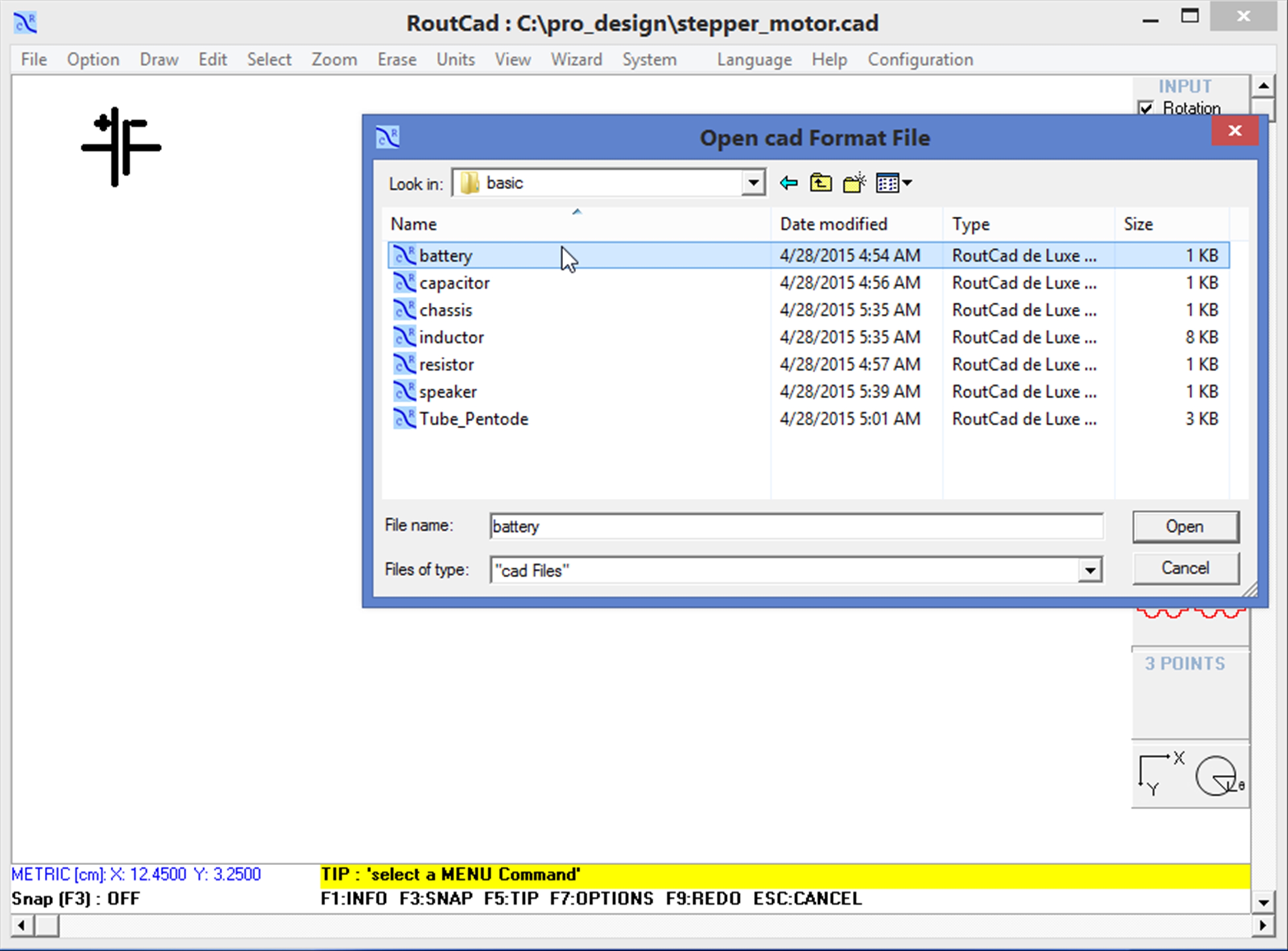
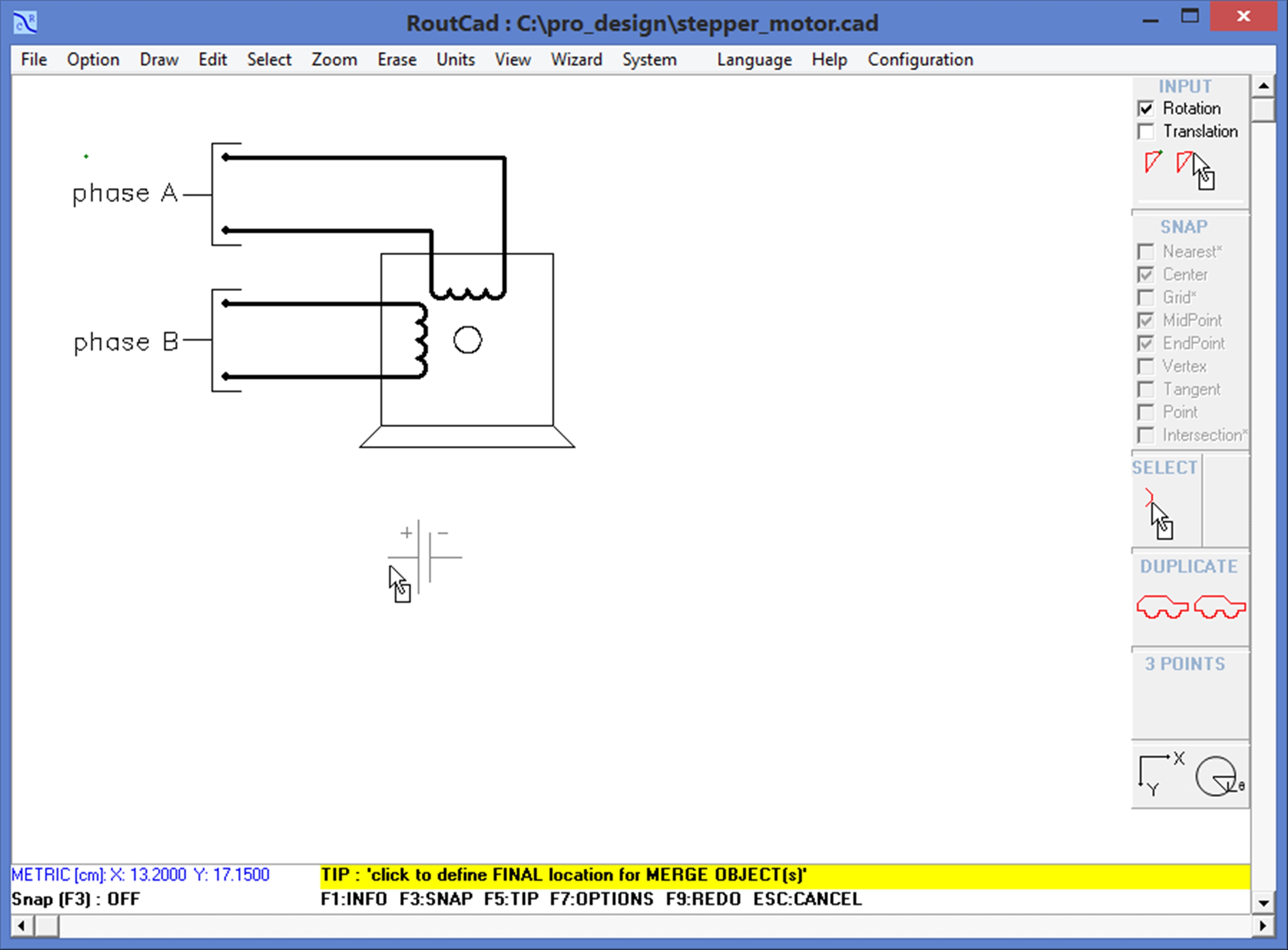
5.2 - Merge with previewing the file content before merging the file. When looking for a specific file to merge, it could sometimes take a long time to locate a file, specially when you have many files in different folders. The file content preview features allows you to see the content of a file before merging it. Just go to the menu item [File]->[Merge] and you will be able to browse to any files and folder. Just click once on any file and the content of the file will appear in the drawing area. Move with the arrow key or mouse to a different file and its content will show up. Then click on open or double click the file to merge it. If you do not wish to open a file just click on [CANCEL] to return to your currently project. This greatly speeds up the process of looking for your files. After you have slected the file you want to mege to your current project by clicking opn or double clicking on the file you want to merge, you will have the opion of placing the content of the drawing you are about to merge any where on the canvas (drawing area). If you wish that the content of the merged file is dropped at the same location that it was created in the orignal file your are merging just press ESC. If you wish to move the merged drawing to a different location, select a first point with the mouse by clicking the left mouse button then select a second point with the mouse byclicking the left mouse button again. During this process you enable or disable the snap option by pressing F3. You can also enter a translation value by checking the Translation checkbox in the Right pannel under the INPUT selection.[MAIN TABLE OF CONTENT] 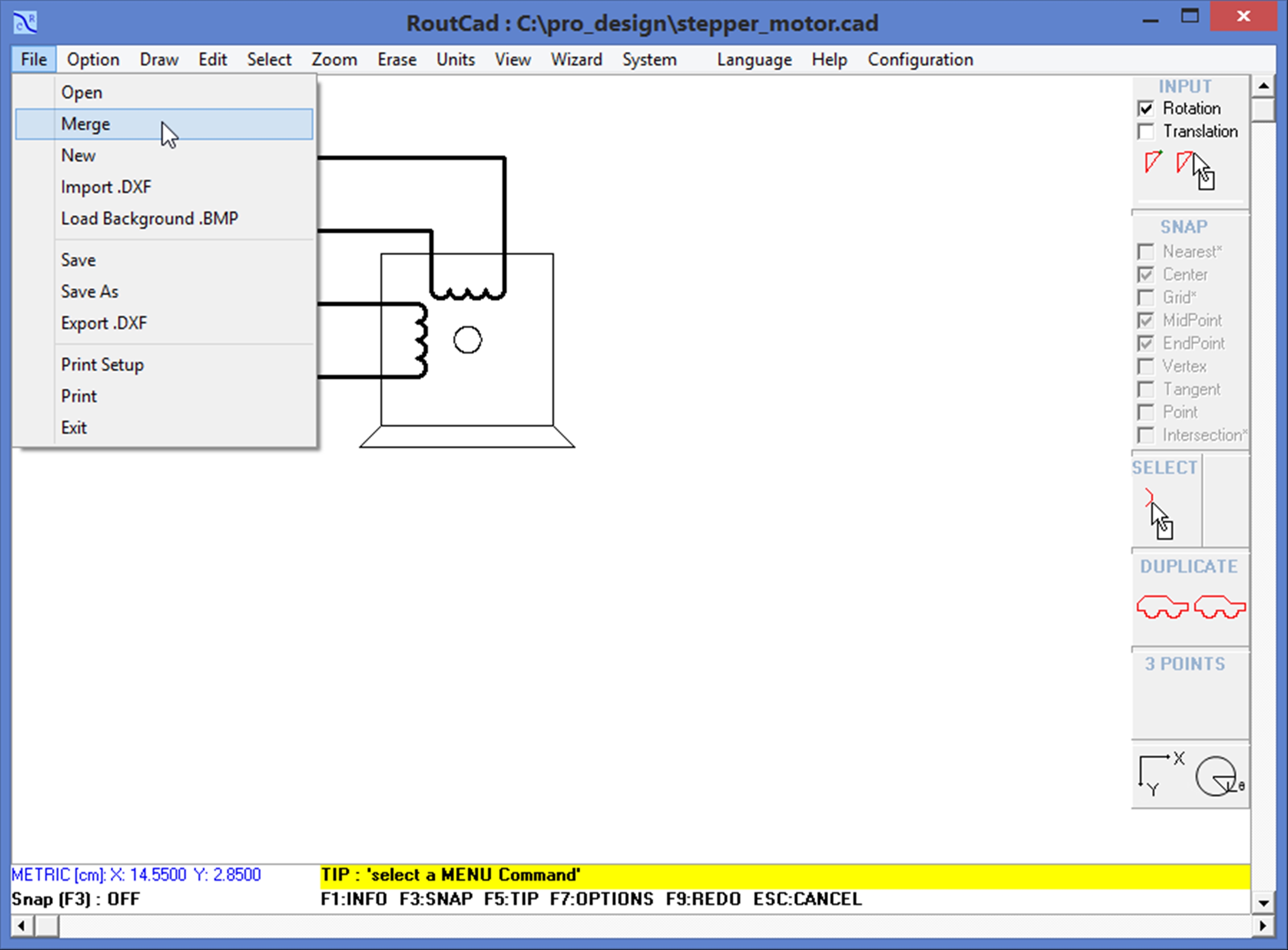
|
|||
|
|||
|
|||
|
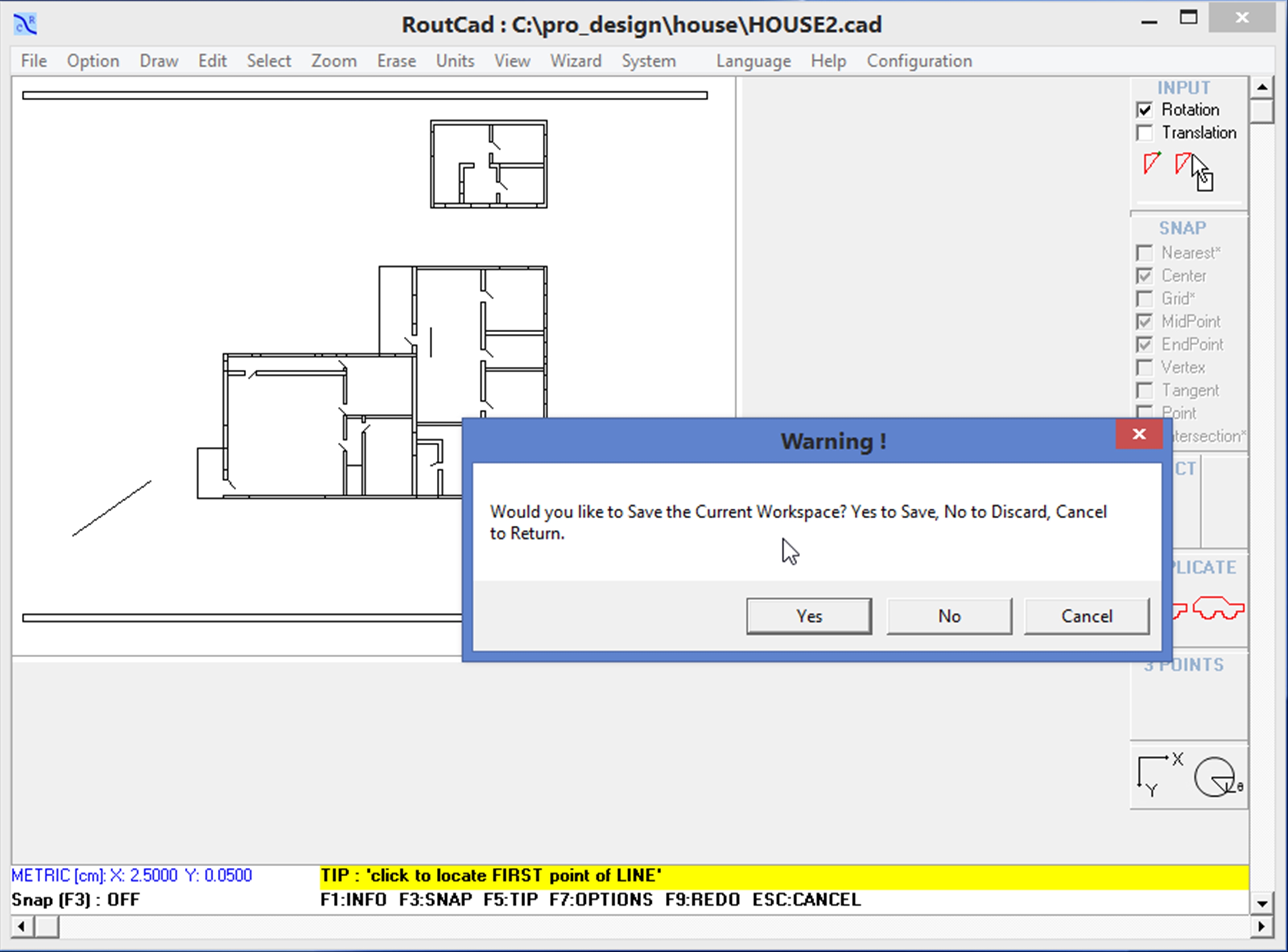
5.3 - New Preview the file content before opening the file. When looking for a specific file, it could sometimes take a long time to locate a file, specially when you have many files in different the folders. The file content preview features allows you to see the content of a file before opening it. Just go to the menu item [File]->[Open] and you will be able to browse to any files and folder. Just click once on any file and the content of the file will appear in the drawing area. Move with the arrow key or mouse to a different file and its content will show up. Then click on open or double click the file to open it. If you do not wish to open a file just click on [CANCEL] to return to your currently project. This greatly speeds up the process of looking for your files..[MAIN TABLE OF CONTENT] 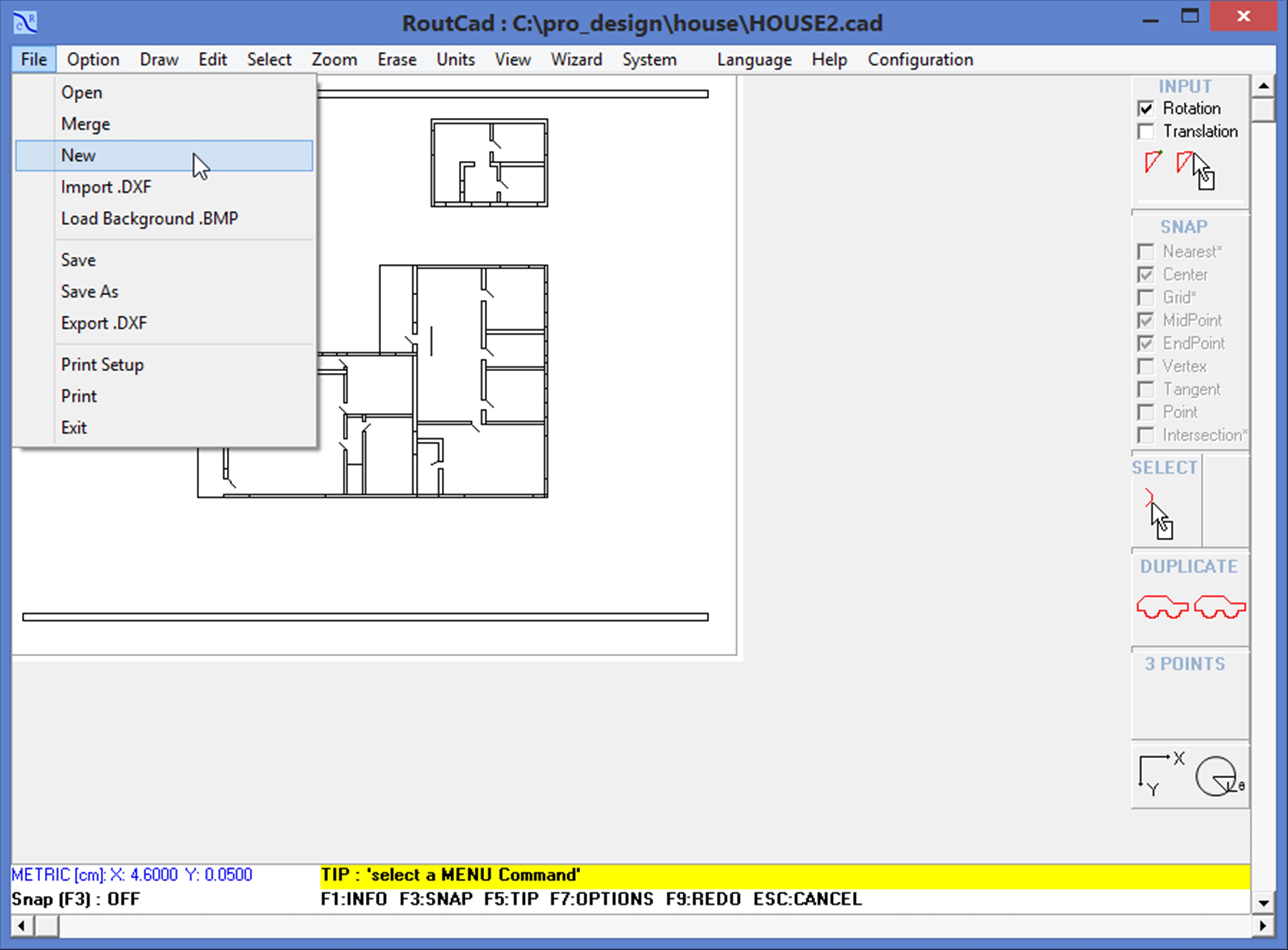
|
|||
|
|||
|
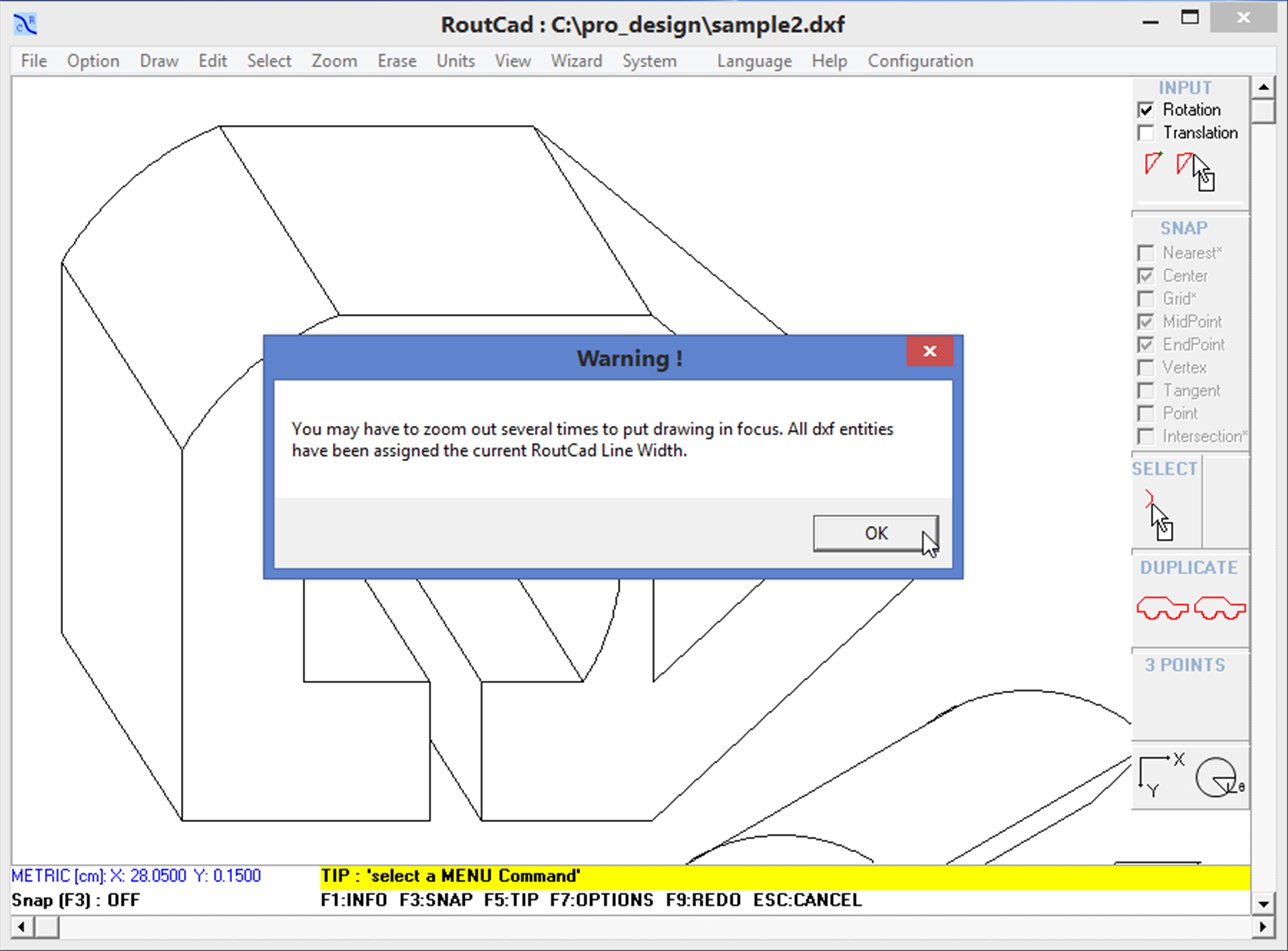
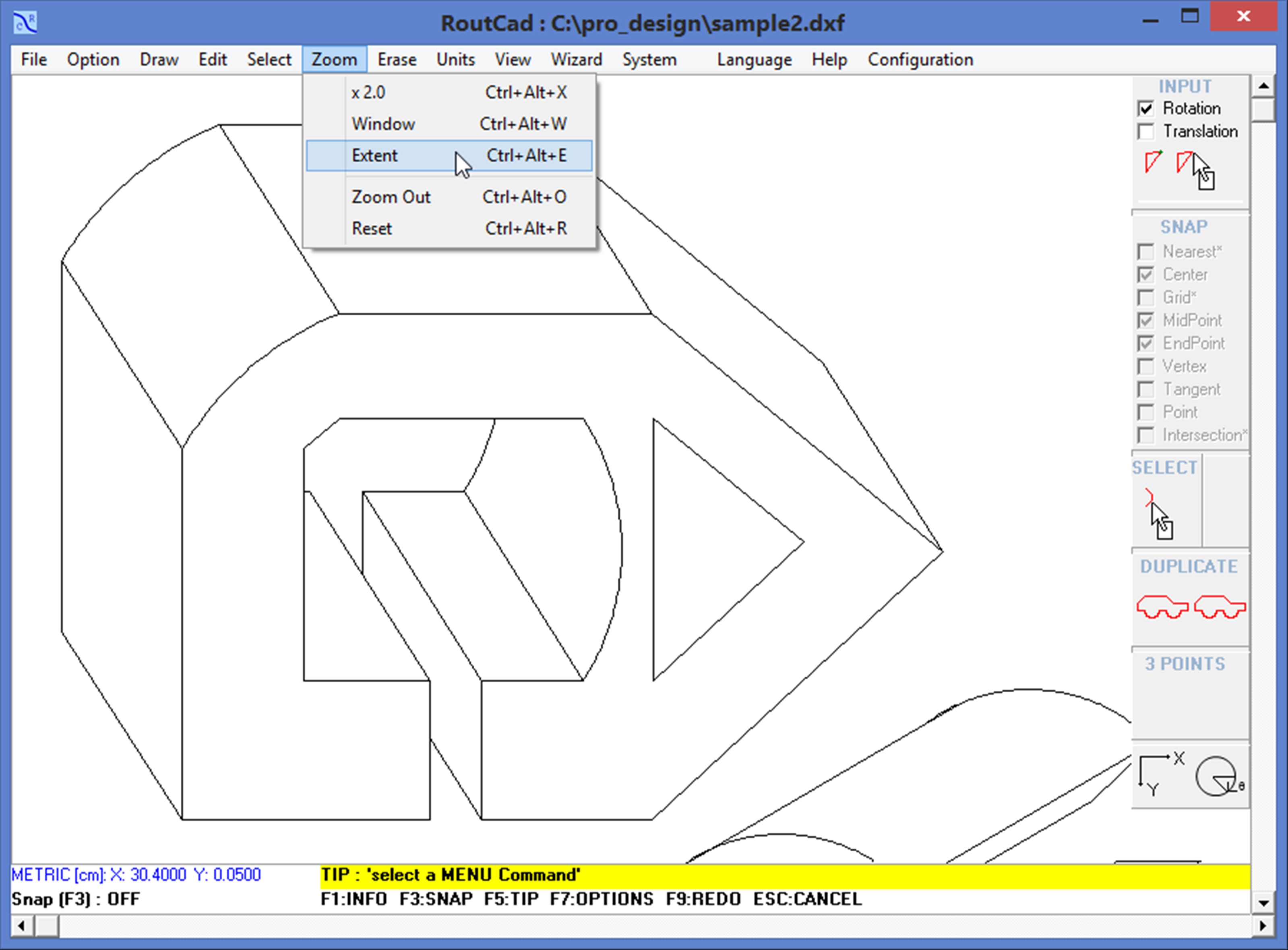
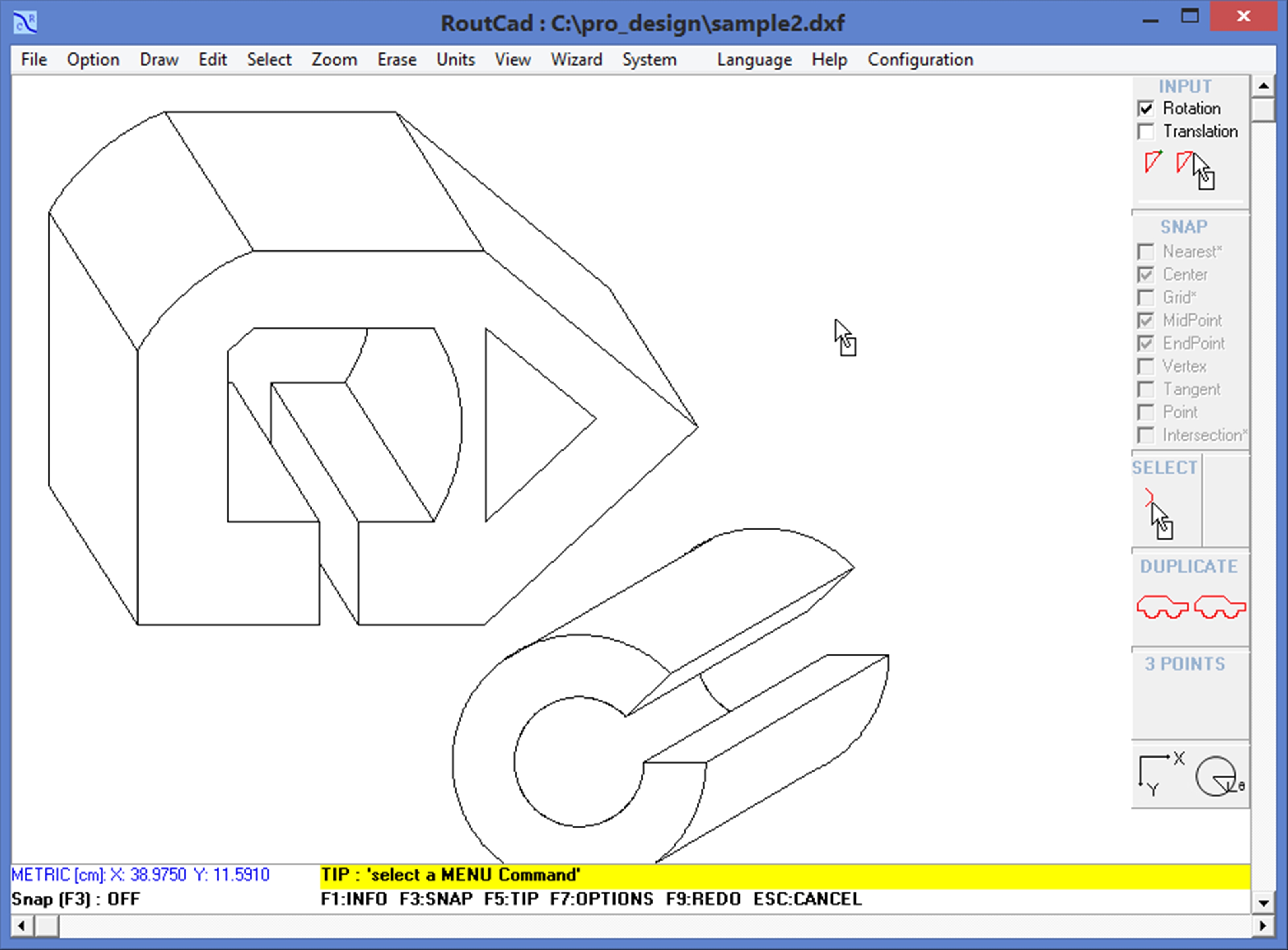
5.4 - Import .DXF Preview the file content before opening the file. When looking for a specific file, it could sometimes take a long time to locate a file, specially when you have many files in different the folders. The file content preview features allows you to see the content of a file before opening it. Just go to the menu item [File]->[Open] and you will be able to browse to any files and folder. Just click once on any file and the content of the file will appear in the drawing area. Move with the arrow key or mouse to a different file and its content will show up. Then click on open or double click the file to open it. If you do not wish to open a file just click on [CANCEL] to return to your currently project. This greatly speeds up the process of looking for your files..[MAIN TABLE OF CONTENT] 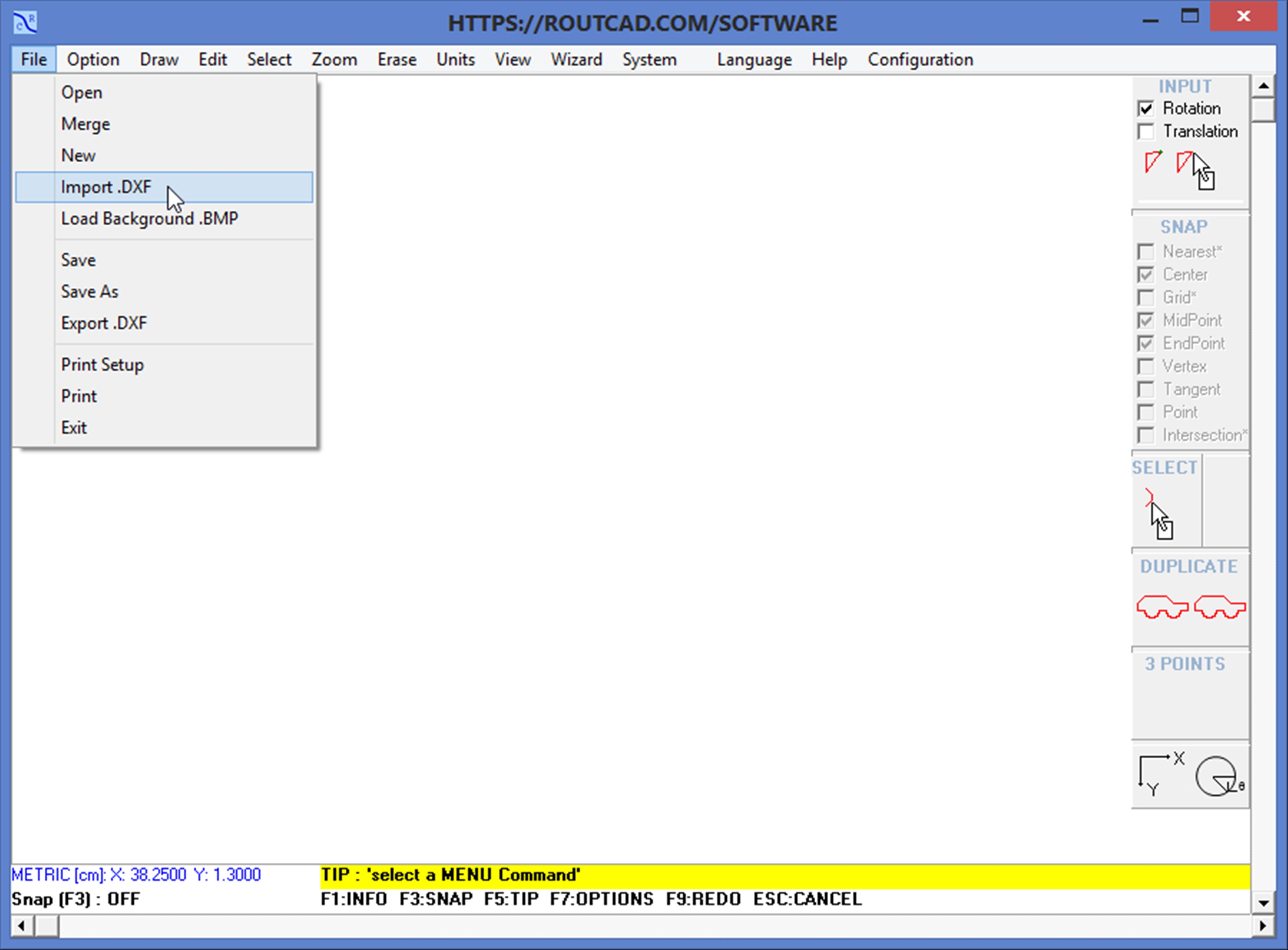
|
|||
|
|||
|
|||
|
|||
|
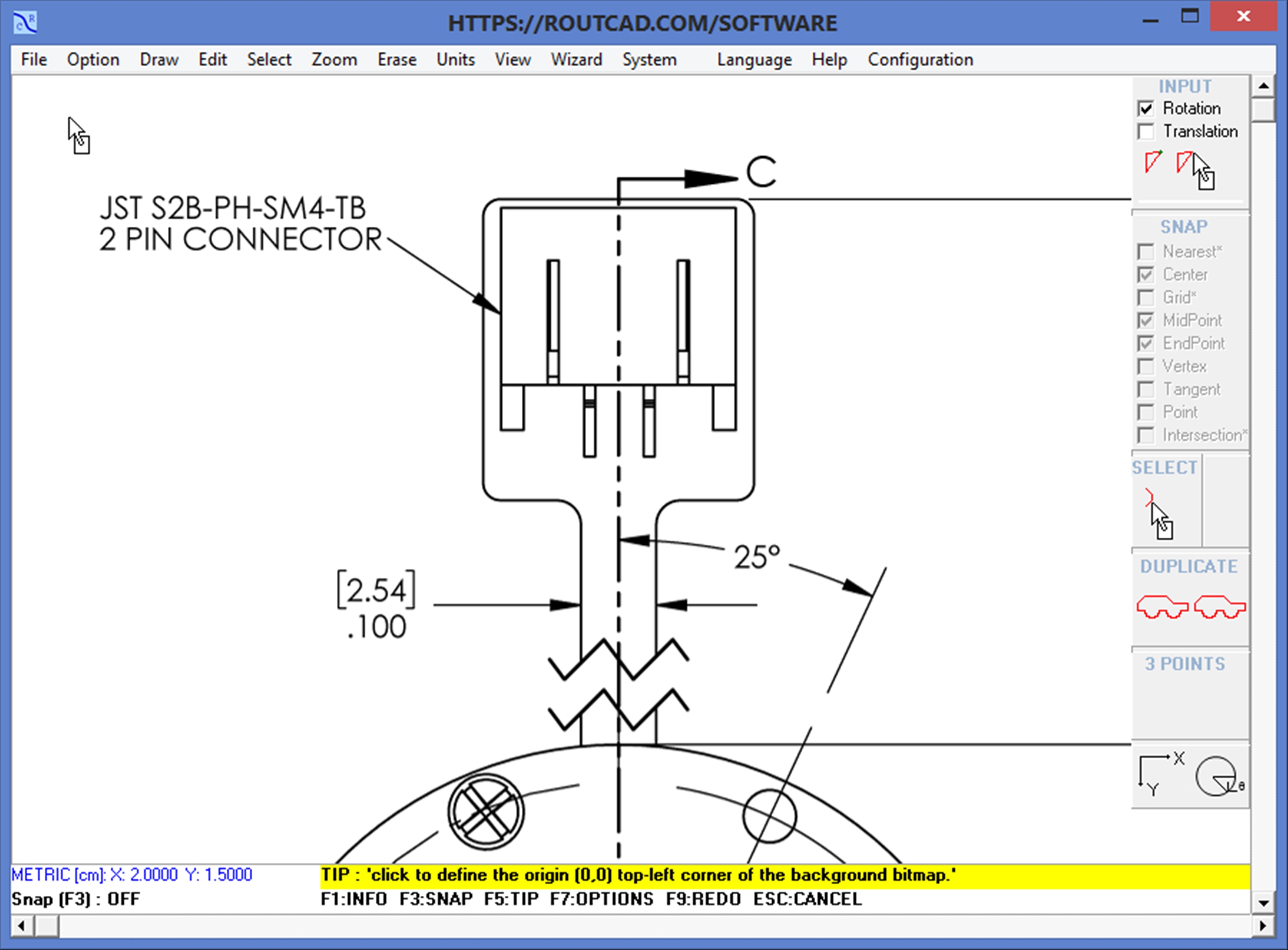
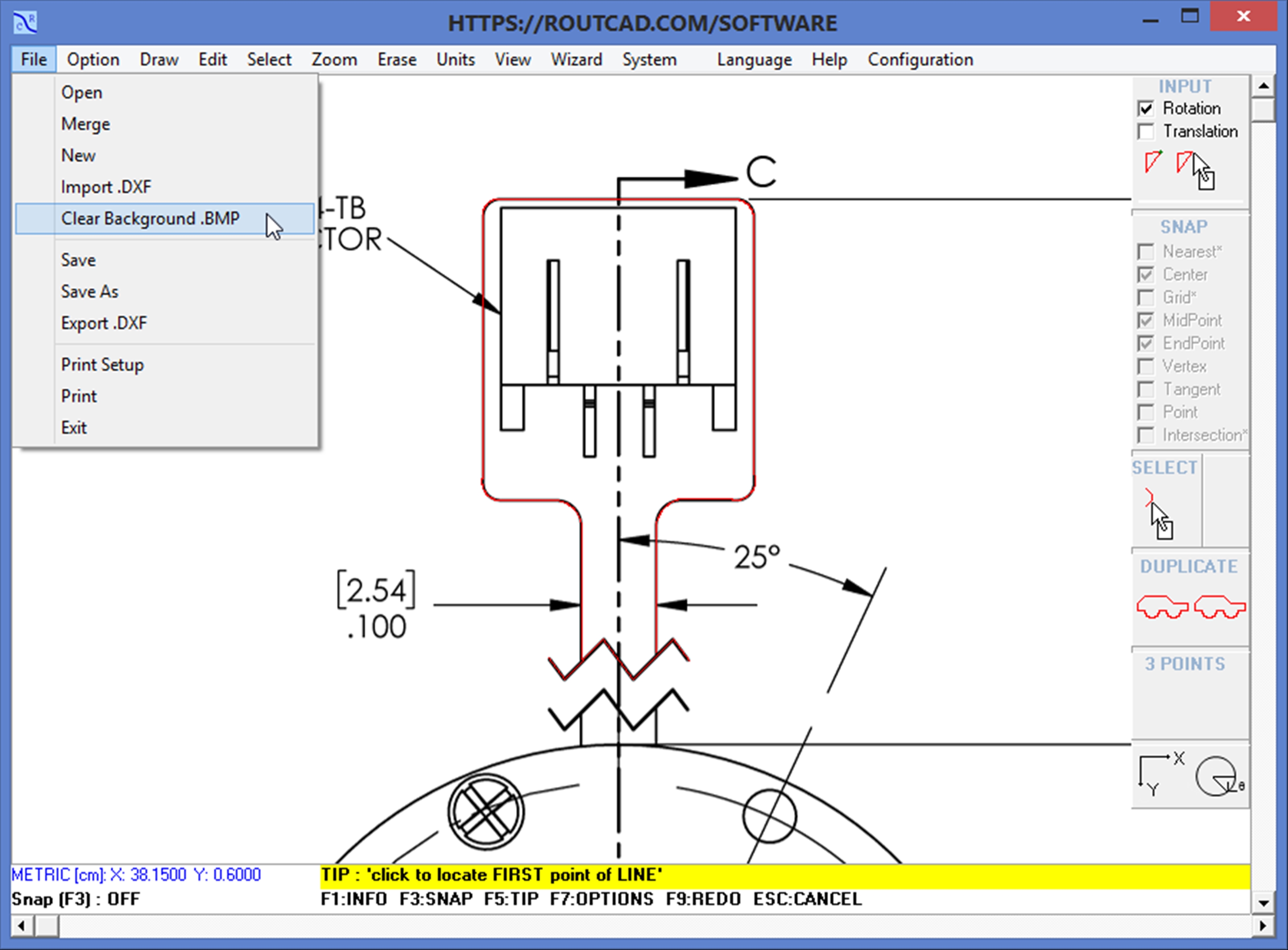
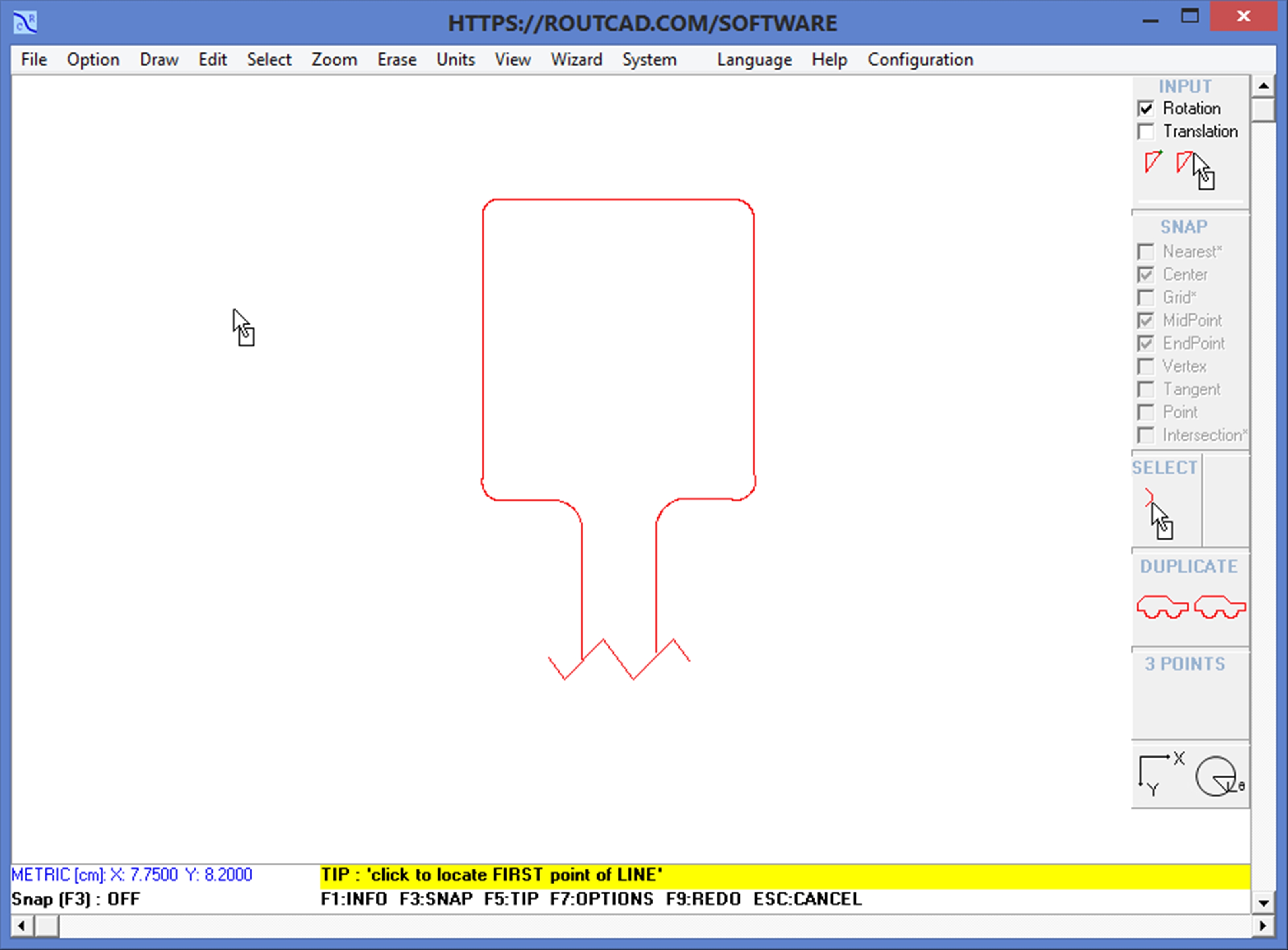
5.5 - Load background bitmap picture. Import .DXF Preview the file content before opening the file. When looking for a specific file, it could sometimes take a long time to locate a file, specially when you have many files in different the folders. The file content preview features allows you to see the content of a file before opening it. Just go to the menu item [File]->[Open] and you will be able to browse to any files and folder. Just click once on any file and the content of the file will appear in the drawing area. Move with the arrow key or mouse to a different file and its content will show up. Then click on open or double click the file to open it. If you do not wish to open a file just click on [CANCEL] to return to your currently project. This greatly speeds up the process of looking for your files..[MAIN TABLE OF CONTENT] 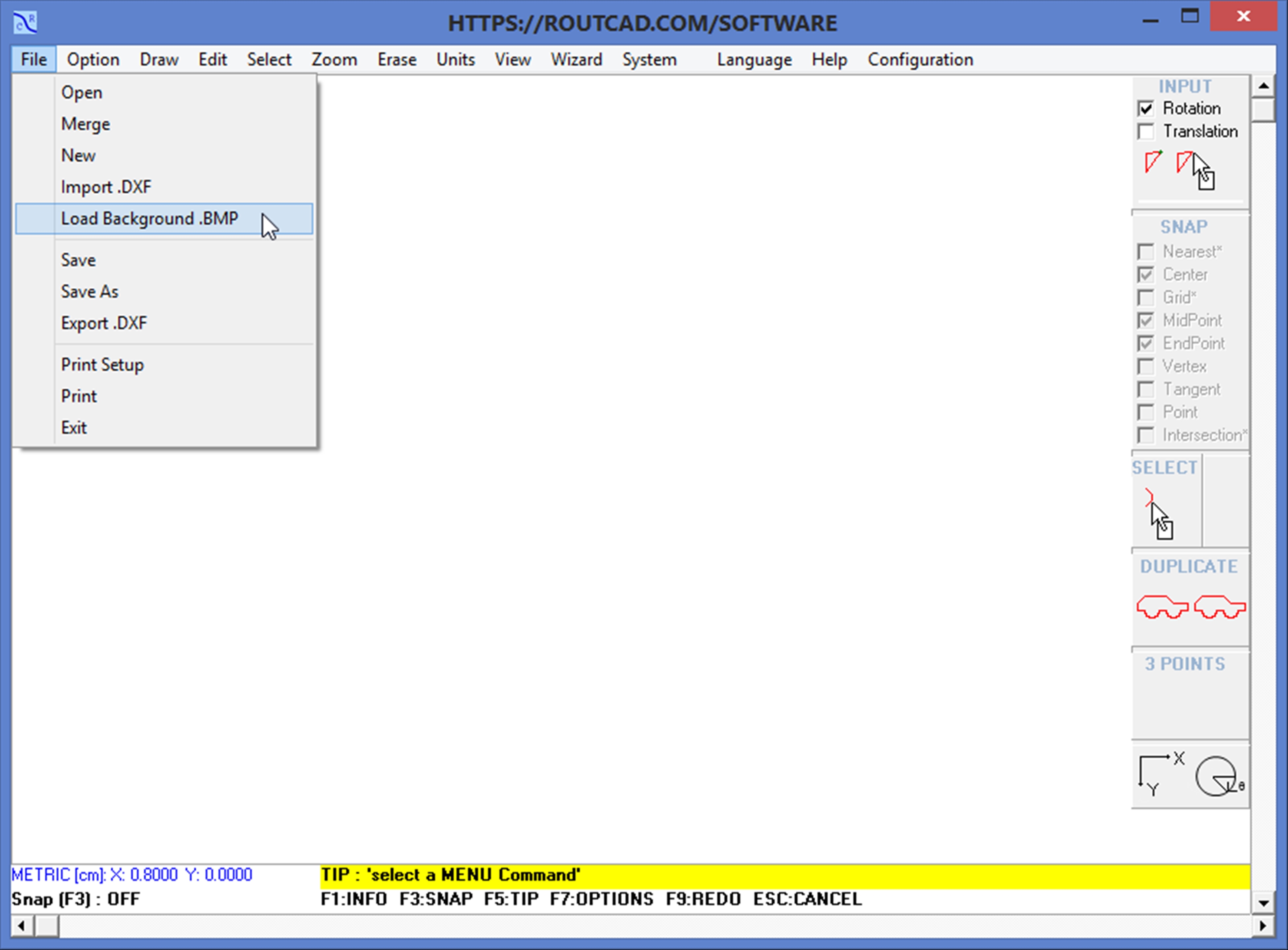
|
|||
|
|||
|
|||
|
|||
|
|||
|
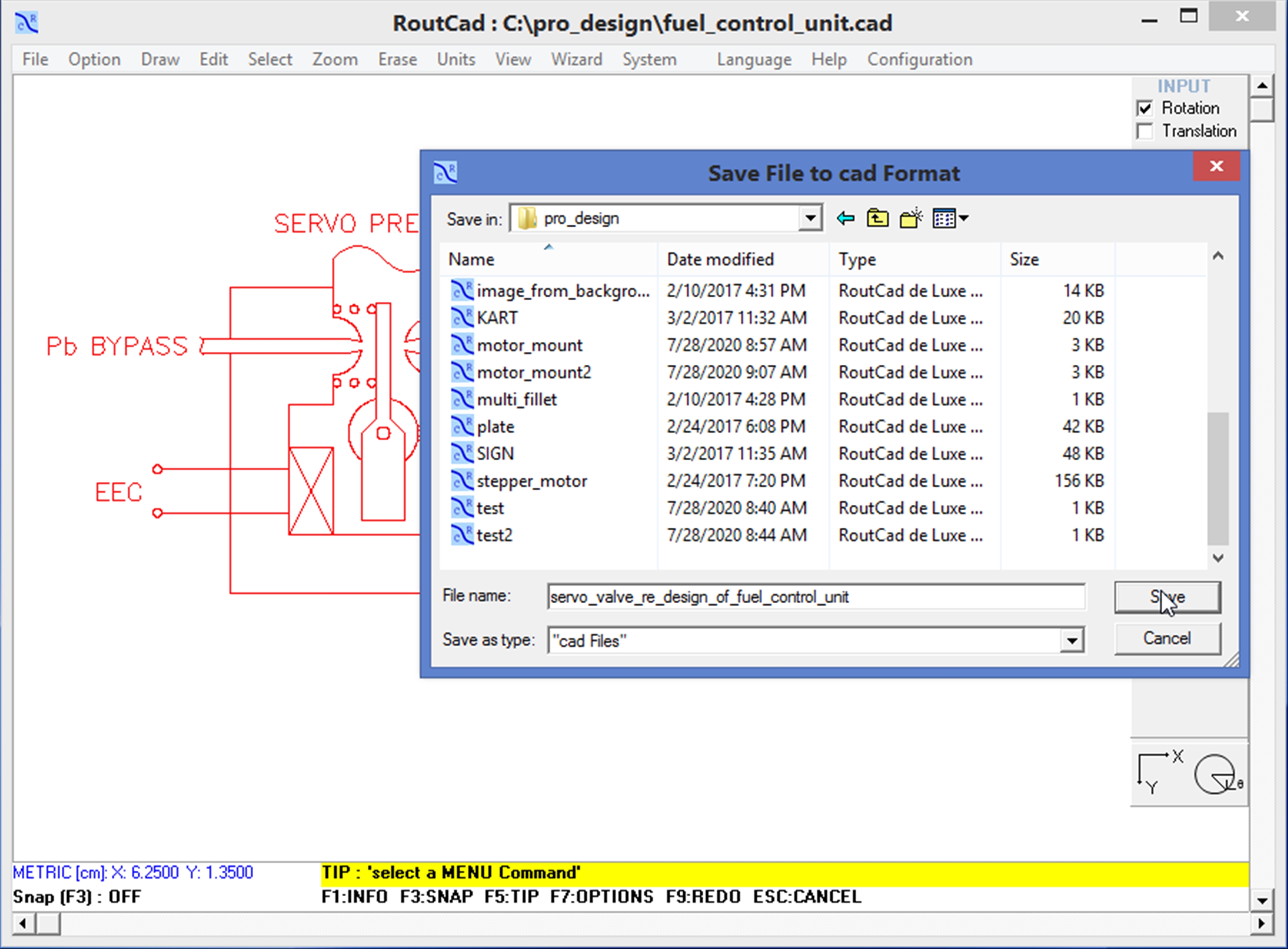
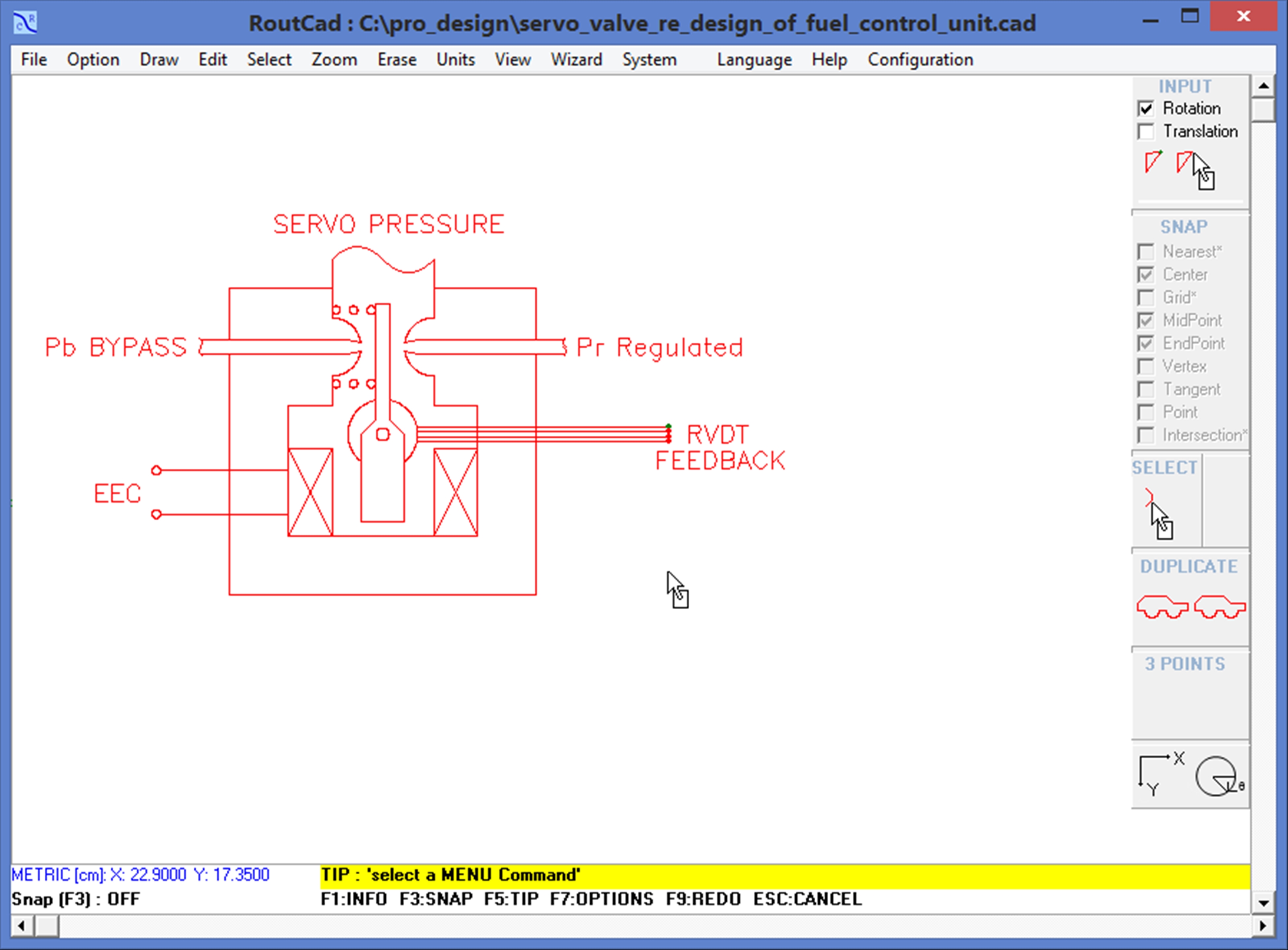
5.6 - Save As. Preview the file content before opening the file. When looking for a specific file, it could sometimes take a long time to locate a file, specially when you have many files in different the folders. The file content preview features allows you to see the content of a file before opening it. Just go to the menu item [File]->[Open] and you will be able to browse to any files and folder. Just click once on any file and the content of the file will appear in the drawing area. Move with the arrow key or mouse to a different file and its content will show up. Then click on open or double click the file to open it. If you do not wish to open a file just click on [CANCEL] to return to your currently project. This greatly speeds up the process of looking for your files..[MAIN TABLE OF CONTENT] 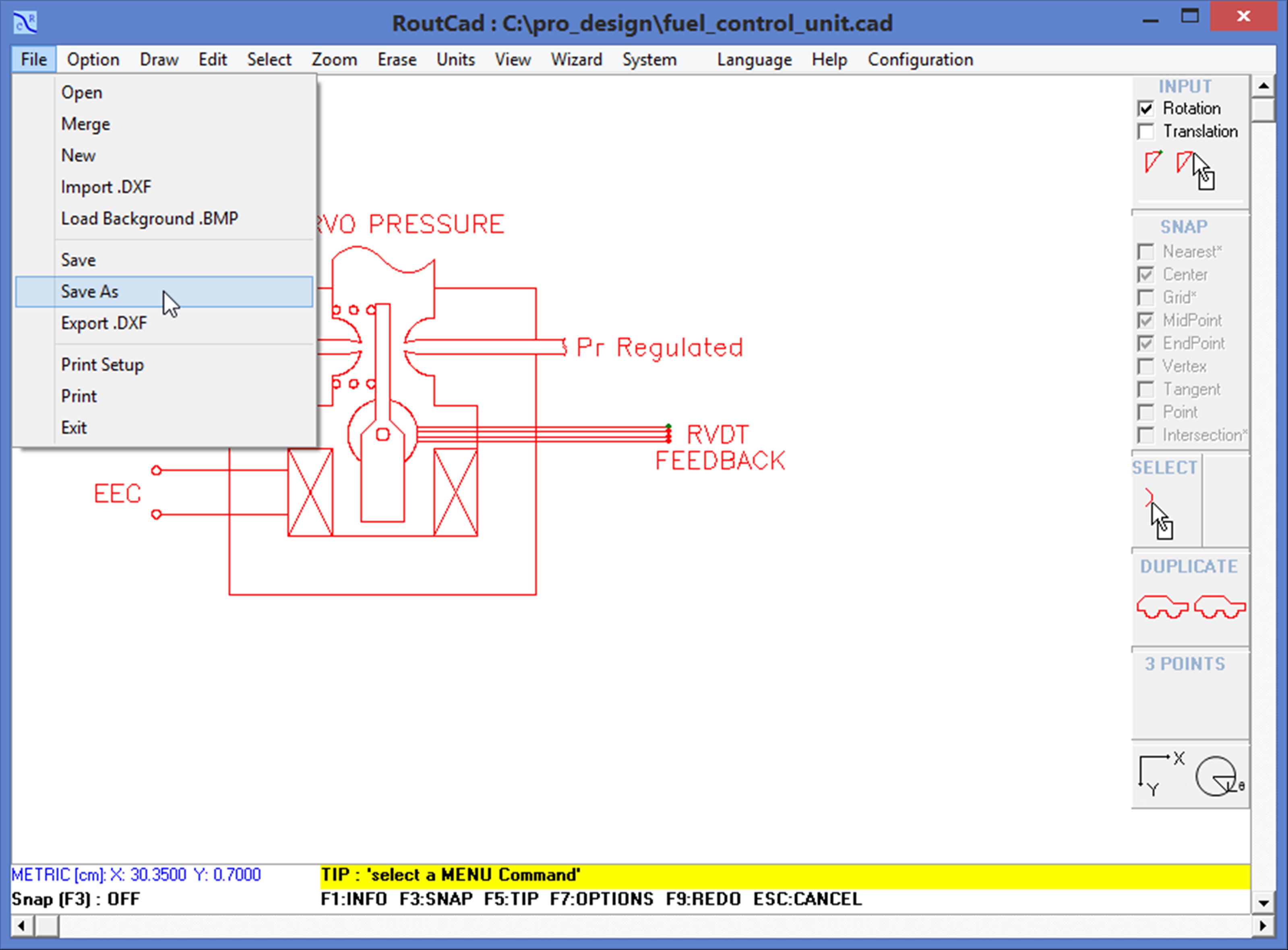
|
|||
|
|||
|
|||
|
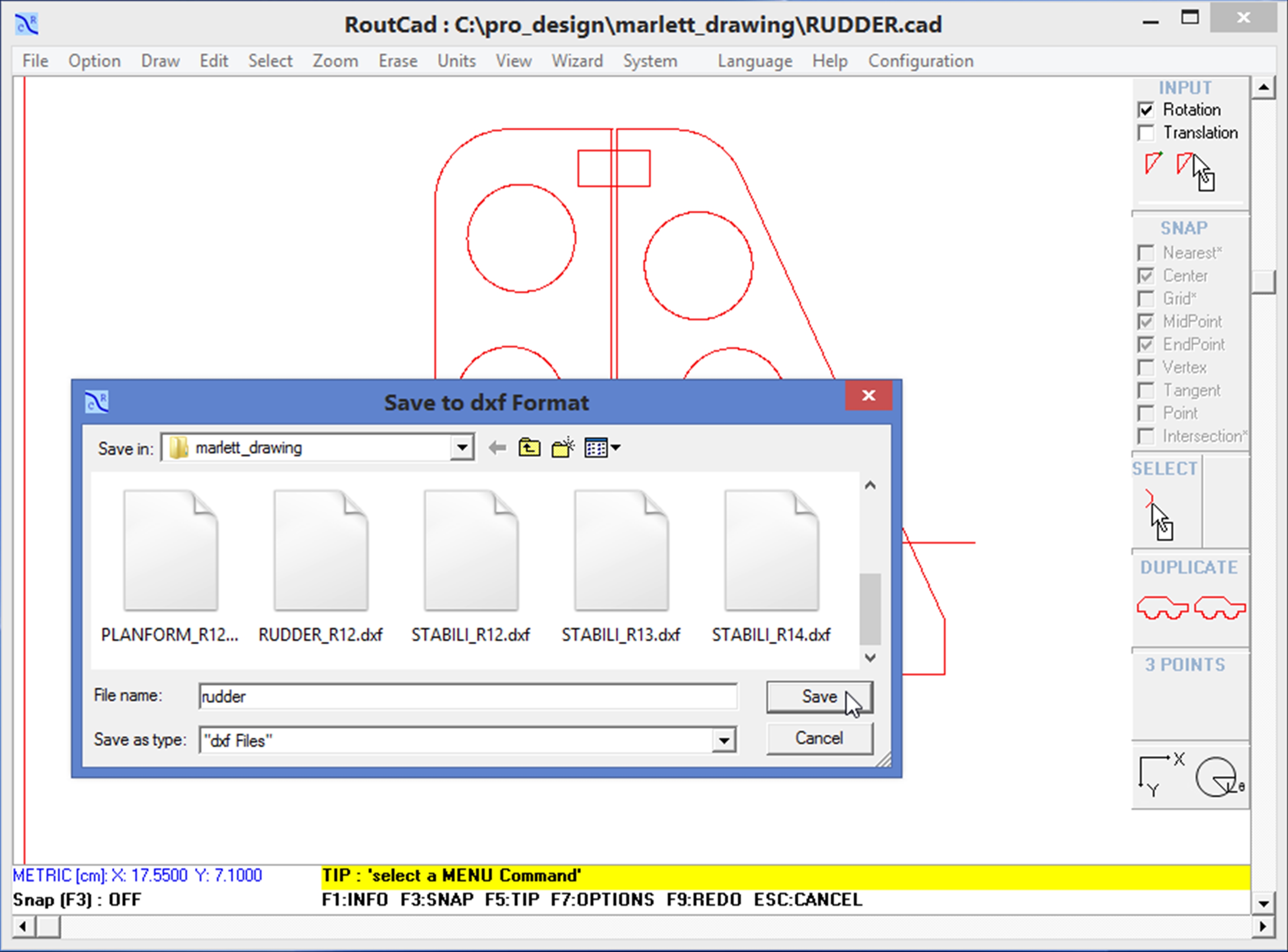
5.7 - Export DXF. Preview the file content before opening the file. When looking for a specific file, it could sometimes take a long time to locate a file, specially when you have many files in different the folders. The file content preview features allows you to see the content of a file before opening it. Just go to the menu item [File]->[Open] and you will be able to browse to any files and folder. Just click once on any file and the content of the file will appear in the drawing area. Move with the arrow key or mouse to a different file and its content will show up. Then click on open or double click the file to open it. If you do not wish to open a file just click on [CANCEL] to return to your currently project. This greatly speeds up the process of looking for your files..[MAIN TABLE OF CONTENT] 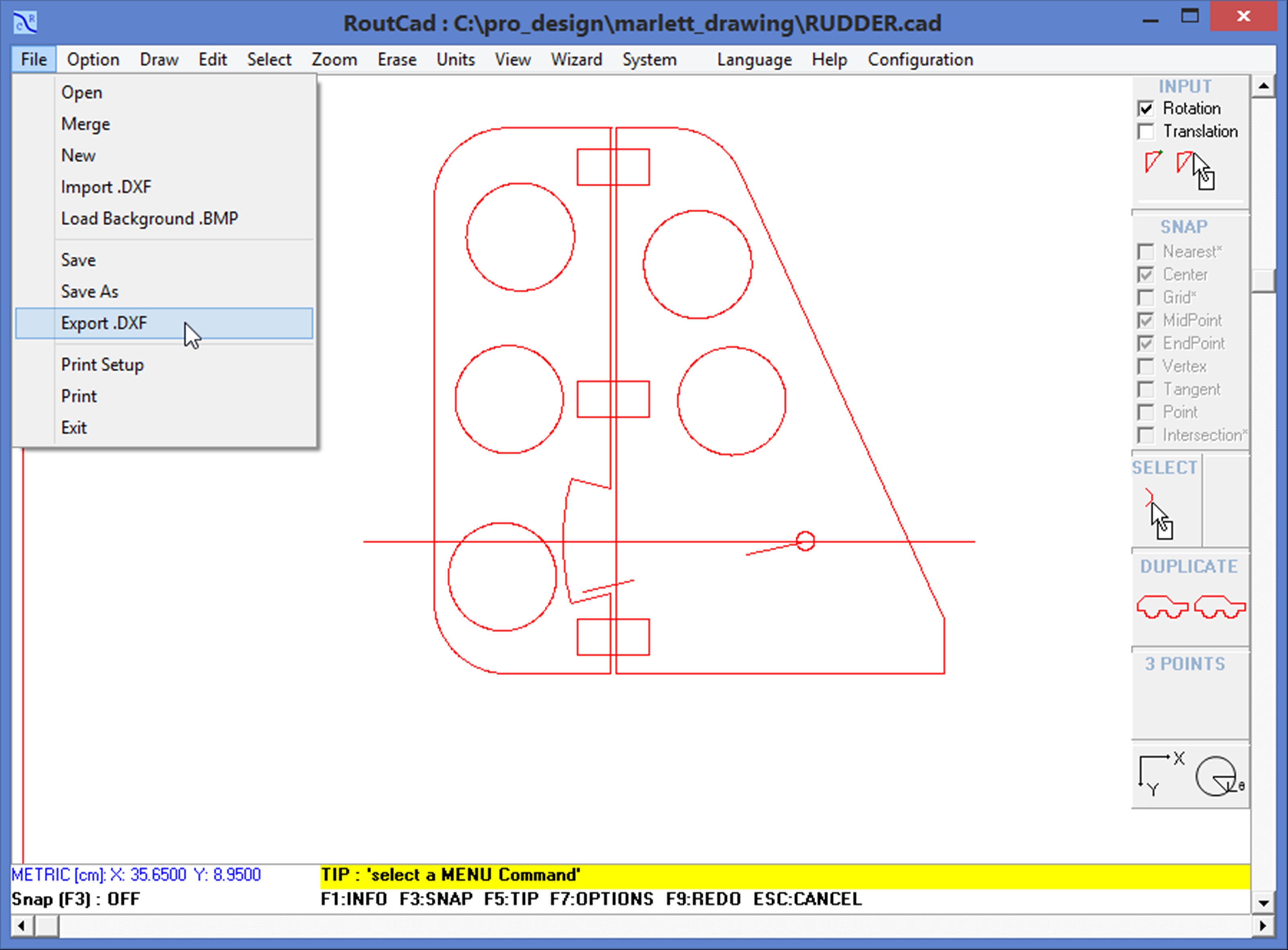
|
|||
|
|||
|
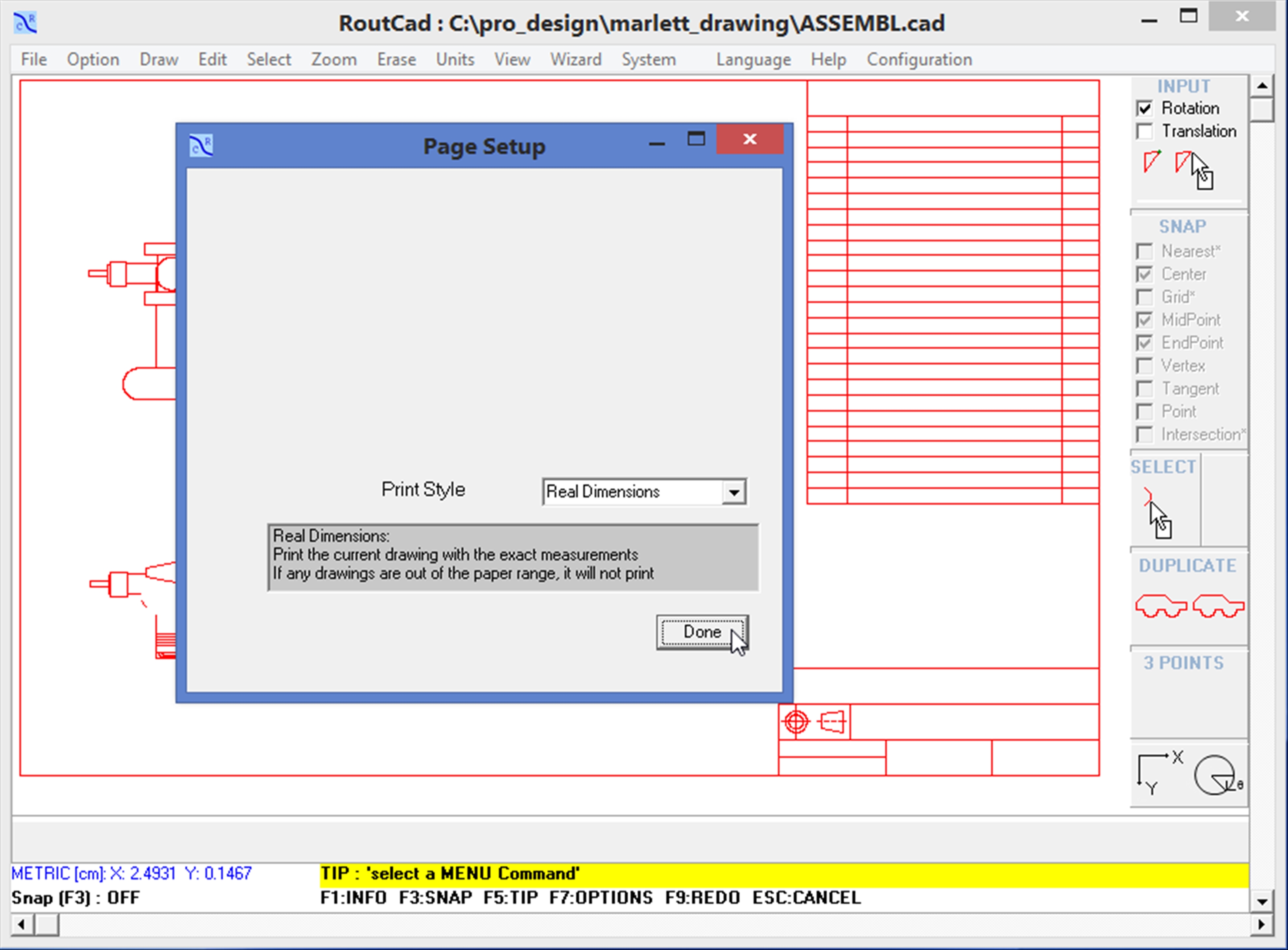
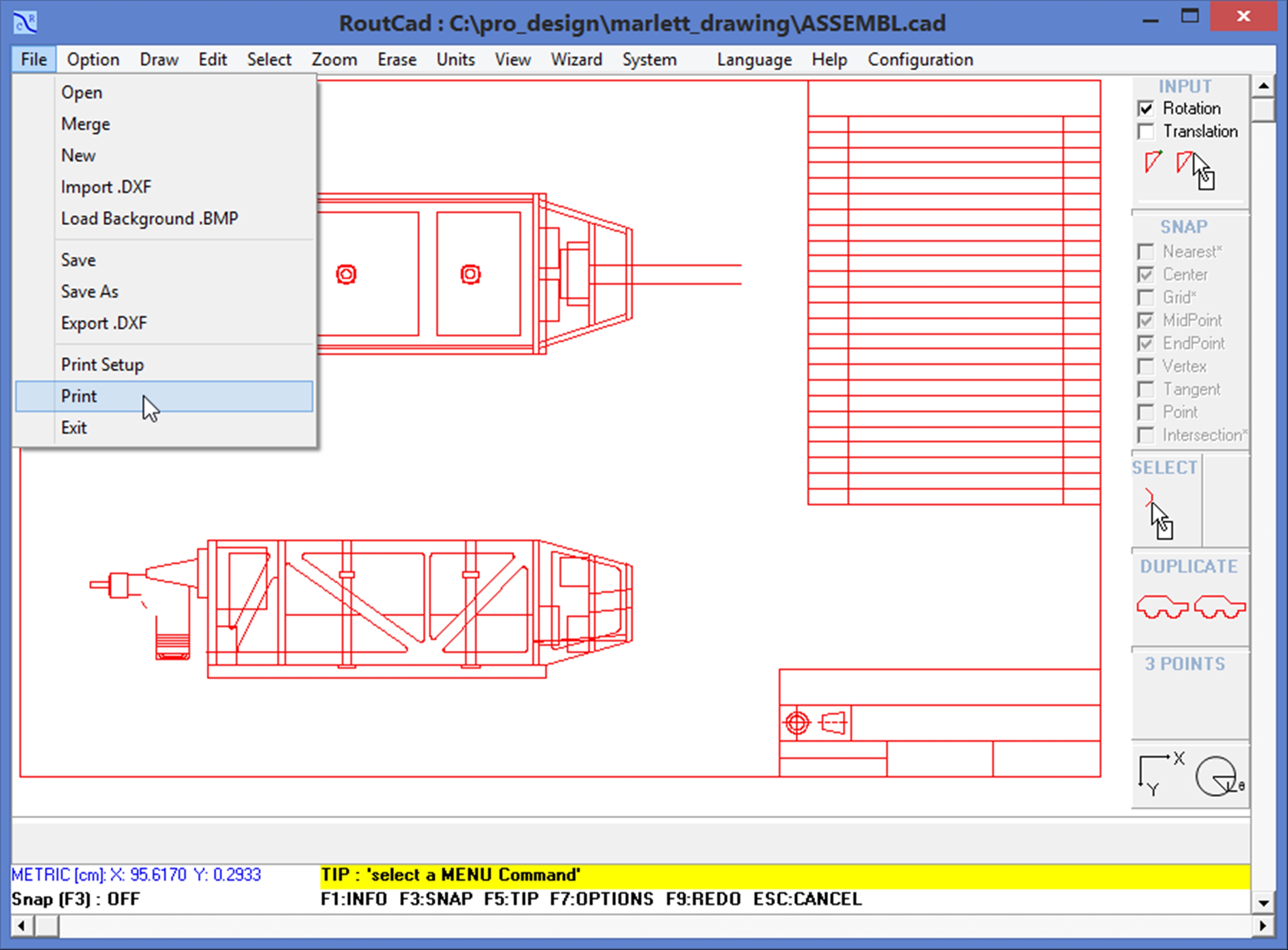
5.8 - Print Setup. Preview the file content before opening the file. When looking for a specific file, it could sometimes take a long time to locate a file, specially when you have many files in different the folders. The file content preview features allows you to see the content of a file before opening it. Just go to the menu item [File]->[Open] and you will be able to browse to any files and folder. Just click once on any file and the content of the file will appear in the drawing area. Move with the arrow key or mouse to a different file and its content will show up. Then click on open or double click the file to open it. If you do not wish to open a file just click on [CANCEL] to return to your currently project. This greatly speeds up the process of looking for your files..[MAIN TABLE OF CONTENT] 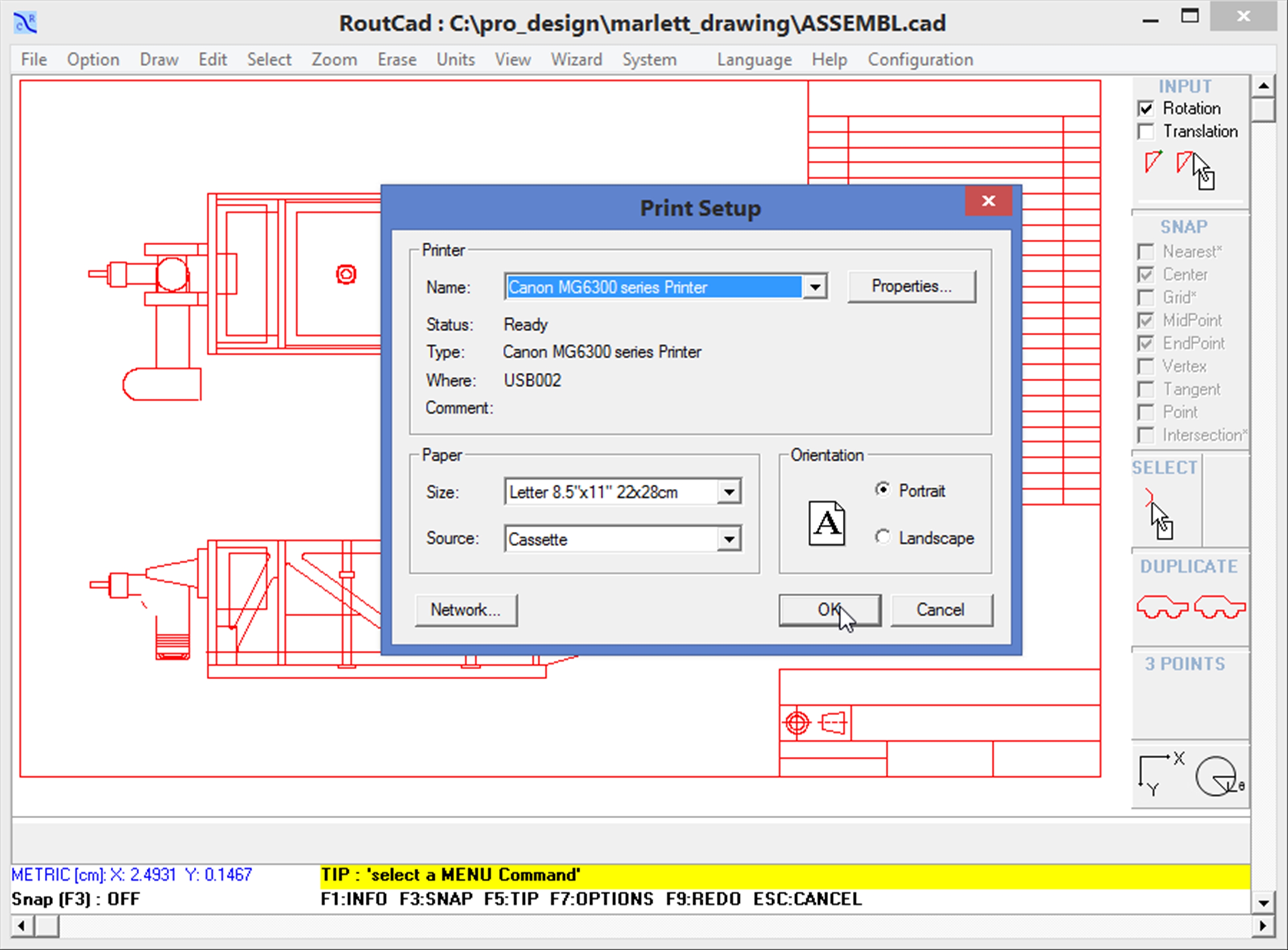
|
|||
|
|||
|
|||
|
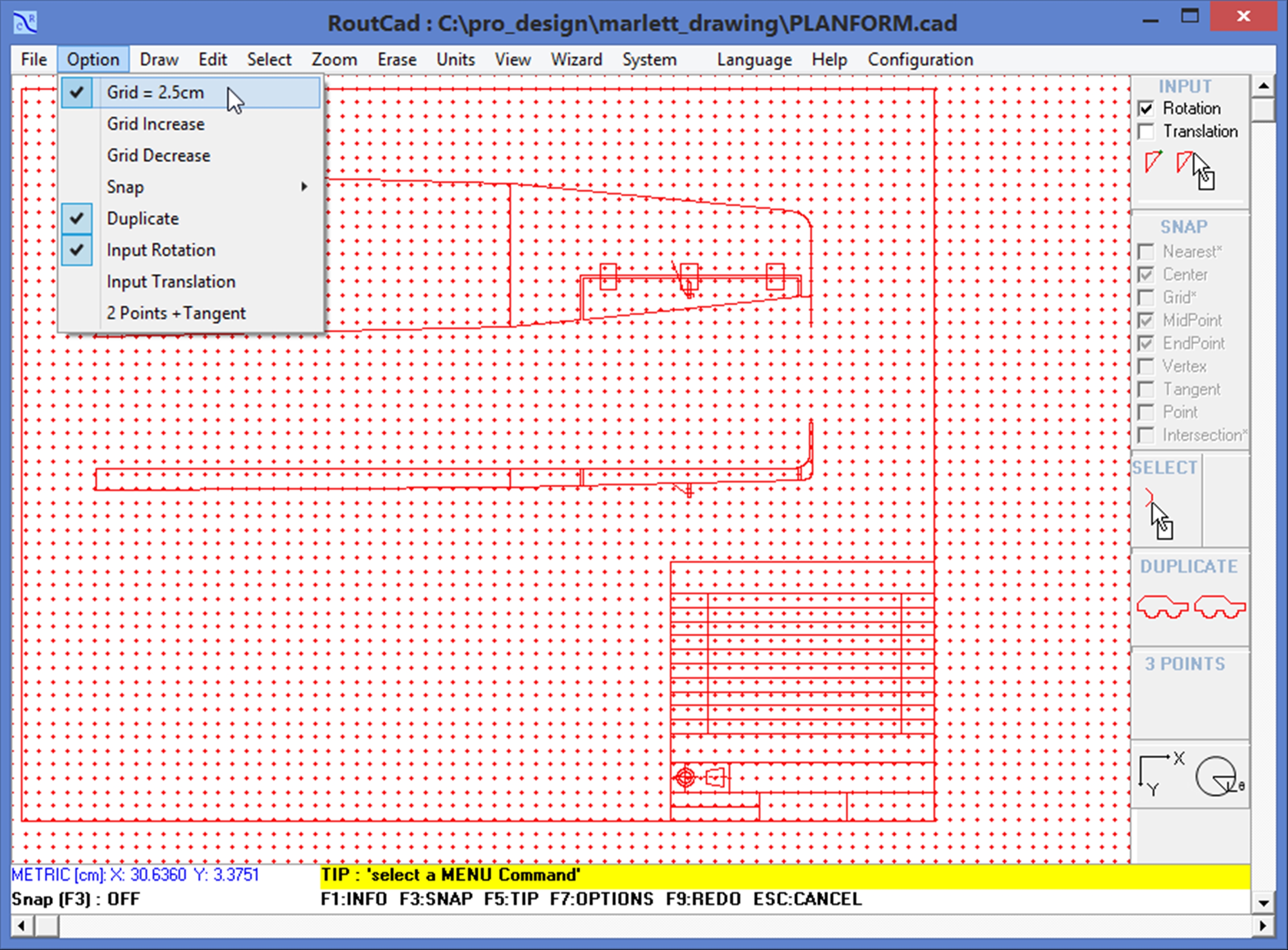
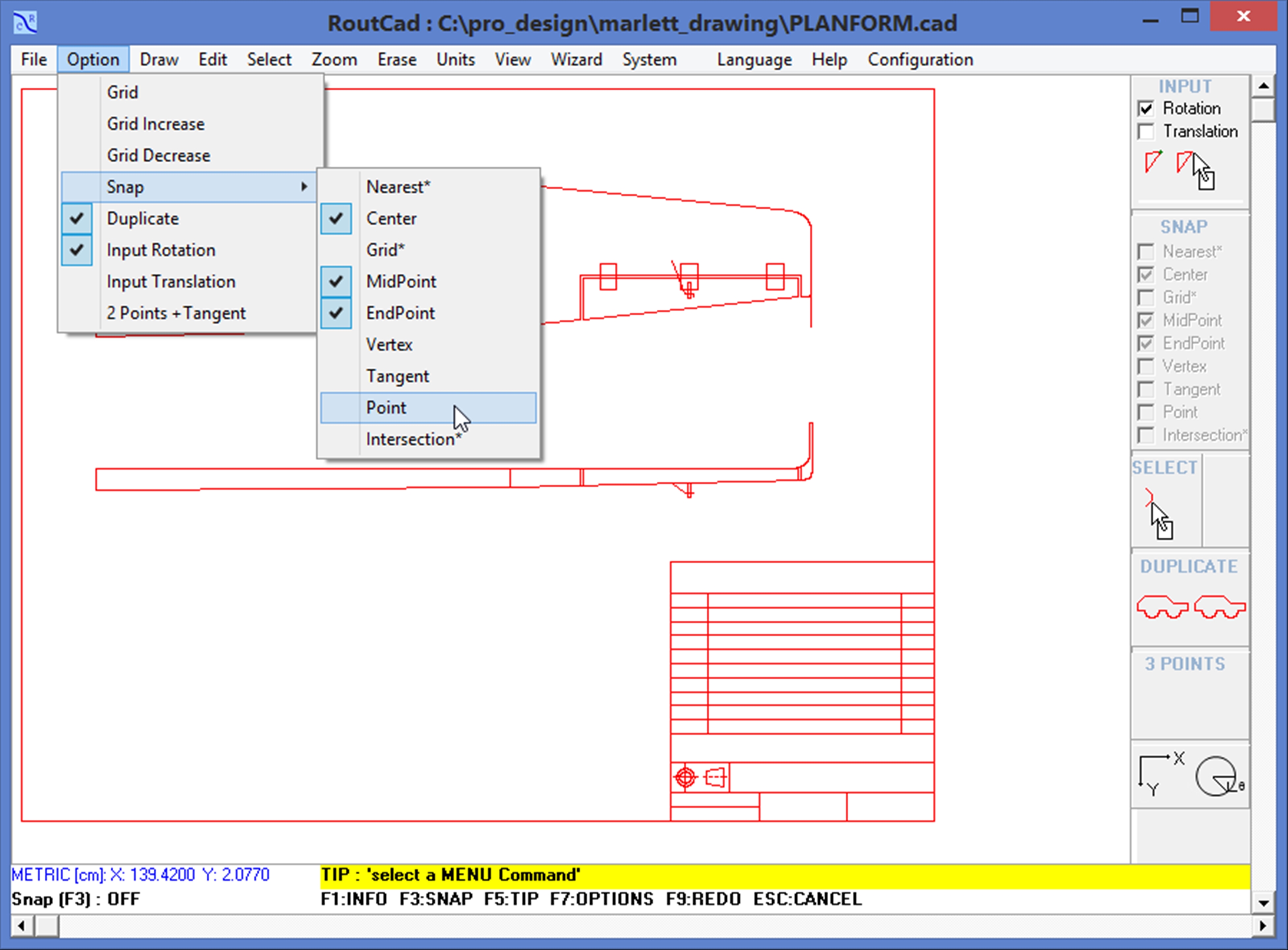
5.9 - Grid Preview the file content before opening the file. When looking for a specific file, it could sometimes take a long time to locate a file, specially when you have many files in different the folders. The file content preview features allows you to see the content of a file before opening it. Just go to the menu item [File]->[Open] and you will be able to browse to any files and folder. Just click once on any file and the content of the file will appear in the drawing area. Move with the arrow key or mouse to a different file and its content will show up. Then click on open or double click the file to open it. If you do not wish to open a file just click on [CANCEL] to return to your currently project. This greatly speeds up the process of looking for your files..[MAIN TABLE OF CONTENT] 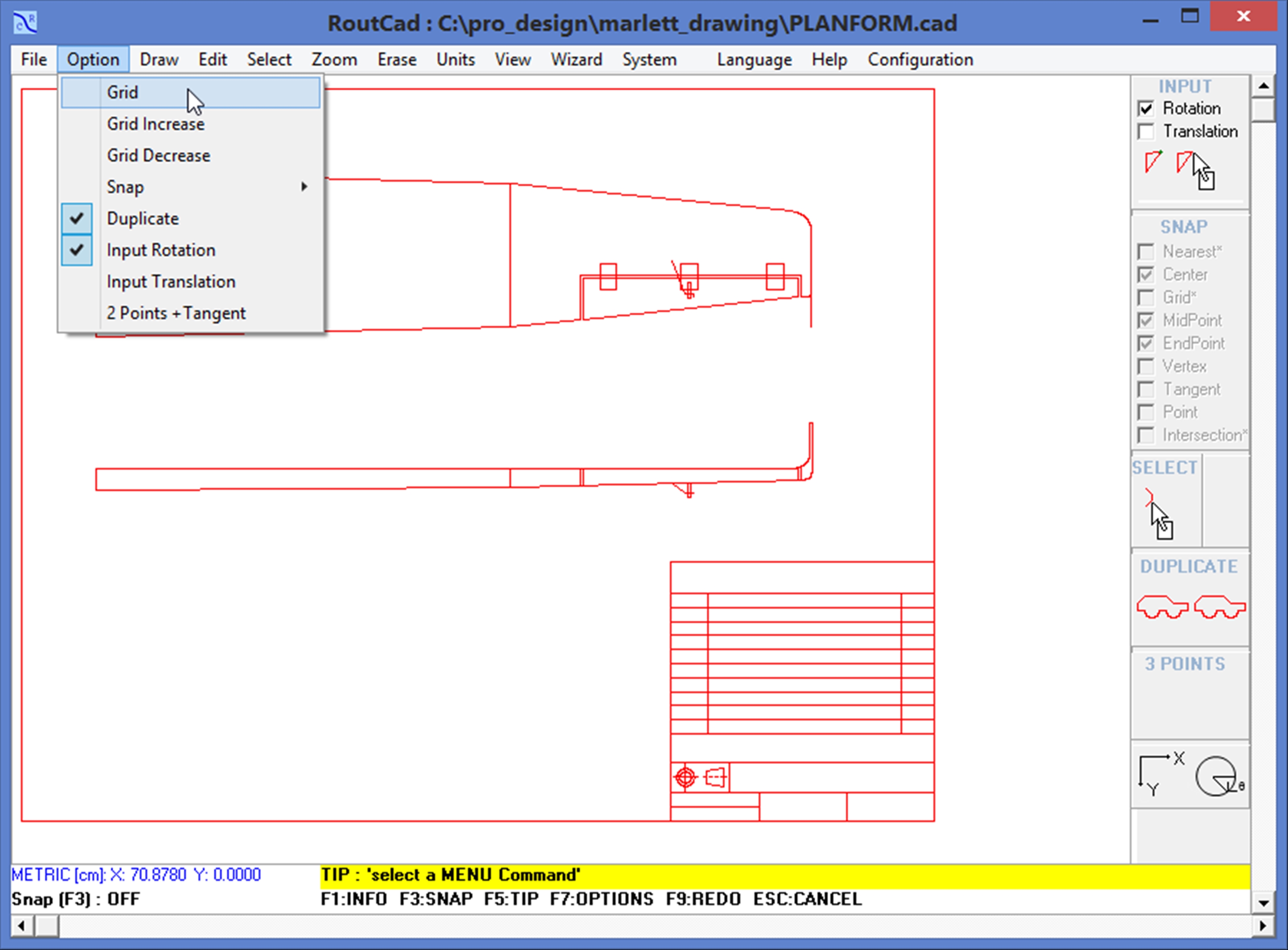
|
|||
|
|||
|
|||
|
|||
|
|||
|
|||
|
|||
|
|||
|
|||
|
|||
|
|||
|
|||
|
|||
|
|||
|
|||
|
|||
|
|||
|
|||
|
|||
|
|||
|
|||
|
|||
|
|||
|
|||
|
|||
|